
Across modules
Some pages belong to no single app: your approvals, Party 360, the Assistant, your files, your calendar and notes, your notifications and Help.
Open them from the tiles on Home or from the foot of the rail. Each shows only what you are allowed to see, and a page you have no use for is not offered to you.
Approvals
Section titled “Approvals”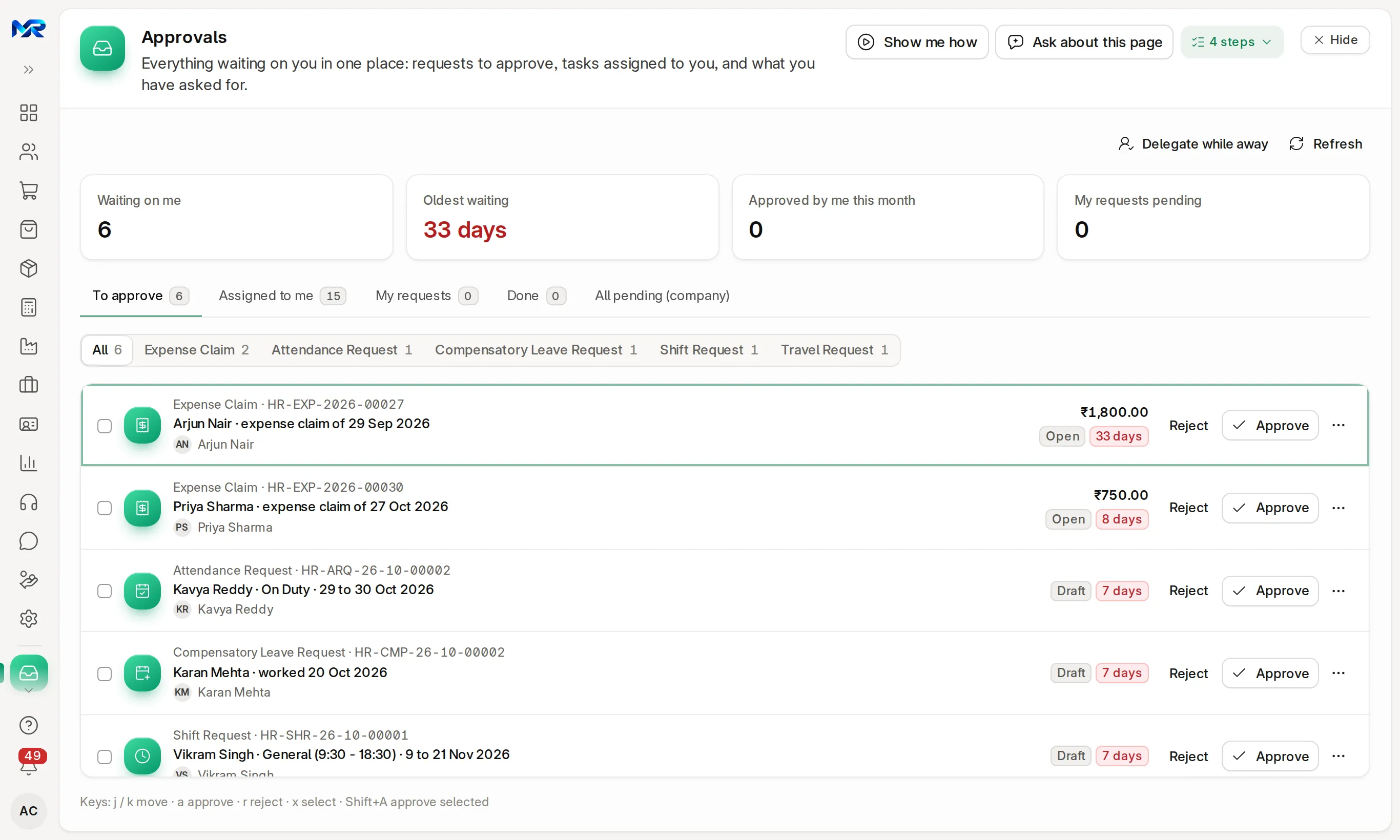
One inbox for everything waiting on you: leave and expense claims as an approver, attendance, shift and travel requests, and documents in an approval workflow (quotations or purchase orders, for example).
- The figures show what is Waiting on me, how long the Oldest waiting item has waited (red when it is late), what you Approved by me this month and My requests pending.
- The tabs are To approve, Assigned to me, My requests and Done, plus Delegated to me while a colleague’s approvals are handed to you; administrators also see All pending (company). Chips narrow the list to one kind.
- Each row shows who asked and for what, the amount, how long it has waited, and Reject and Approve. Click the row to open the record.
- Read the row, or open it for the lines, attachments and history.
- Press Approve, or Reject and give a reason the person can act on.
- Going on leave? Press Delegate while away, pick a colleague and the dates, and your approvals reach them too. You can still approve while the hand-over runs.
An expense claim with no receipt asks you to confirm before you approve it. Approval steps, delegation and time limits are set up by your administrator in Workflows (see Users and roles).
Party 360
Section titled “Party 360”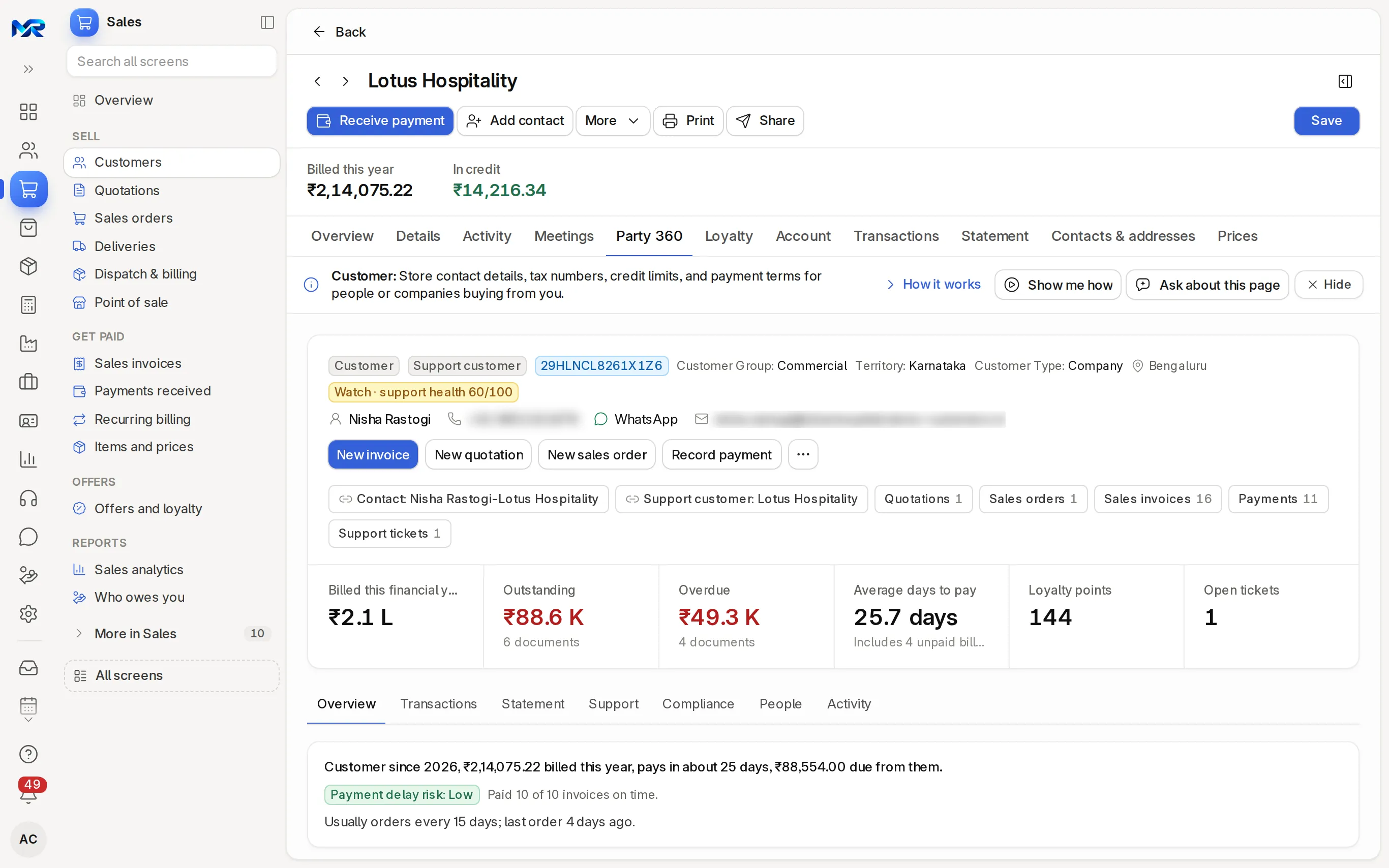
Party 360 puts one customer, supplier, lead or employee on one page.
- Type a name in Find a party, or narrow the suggestions with Customers, Suppliers, Leads or Employees. Each suggestion shows the amount due.
- Pick the party. The page shows its figures (billed, outstanding, overdue, days to pay) and its tabs: Overview, Transactions for every document, Statement for the ledger with a running balance, then CRM, Support, Items supplied, Compliance and People where they apply, and Activity for the history. A customer’s or supplier’s own record has the same view on its Party 360 tab.
The same company or person is recognised across the apps, even when it is recorded under a different name in CRM, Sales, Support or HR, so you see its deals, invoices, payments, tickets and loans together. A document you may not read, or one from a module outside your plan, is left out.
AI assistant
Section titled “AI assistant”The Assistant answers questions about your business from your own records, in plain words.
- Press New conversation, or pick a suggested question such as Which sales invoices are overdue? or Who is on leave this week?.
- Type your own question, for example “which customers are overdue by more than 60 days?”.
- Choose how it works, under the box:
- Ask: it answers from your records and changes nothing. The answer links to the records it used.
- Do: describe one change (“create a task to call Kaveri Agencies tomorrow”). The assistant shows exactly what it would save; nothing is written until you press Confirm, and Cancel throws it away. A proposal left unconfirmed for 30 minutes expires.
The cards under the suggestions (cash-flow outlook, sales forecast, who has not paid in 60 days, unusual payments) each have Ask about it. The assistant runs as you: it sees only what you may see, and says so when a question needs records you cannot open. Ask about this page, on every page, explains the page you are on, its fields and your next step. Your own use is under Settings › AI.
Documents
Section titled “Documents”Documents gathers every file attached anywhere in MyRecords.
- All files lists everything; To process holds loose uploads, files sent for your requests and mailed attachments; Requested from others shows what you asked people to send; Attached to records opens the files of one kind of record.
- Search document content searches inside text files and PDFs that carry text (not inside scanned images). Filters narrow by type, date, who uploaded and who can see them.
- In To process, Attach to record files a document; with the AI Assistant add-on, Read with AI (or Process with AI for several) says what it is and offers Make a bill or Make bank entries.
- Upload adds a file of your own; share it with a colleague to let them read it (not change it).
- Click a file to preview it, open it, or see earlier versions.
A file attached to a record is visible only to people who can read that record; your own uploads stay yours until you share them. Files deleted recently are kept under Deleted in the last 30 days.
Calendar and notes
Section titled “Calendar and notes”- Calendar puts your meetings, tasks and reminders next to leave, holidays, invoices falling due, expected deliveries and GST and TDS dates, by Day, Week, Month or Agenda; the coloured buttons switch each layer on or off. New event books a meeting; under Remind me, type what to remember, pick When and press Add reminder.
- Notes holds your notes and the company’s Announcements; the Unread tab lists announcements you have not read yet.
Notification preferences
Section titled “Notification preferences”Open Settings › Notifications (or the gear on the notifications panel):
- Enable notifications turns in-app notifications on or off; Email notifications also sends them by e-mail.
- What reaches you, and how picks, for each kind (approvals, mentions, assignments, shared with me, alerts), whether it shows in the app, by e-mail or both.
- On your phone: WhatsApp and phone notifications, with quiet hours, once those are connected for your company.
- Summary email: one e-mail with your open tasks and unread notifications, daily or weekly.
- Muted records: records you silenced from a notification’s … menu.
Data import and undo
Section titled “Data import and undo”- Open Administration › Import data. Under What do you want to import? pick Customers, Suppliers, Items, Employees, Chart of accounts, Contacts or another kind of record. Press Next: get the template.
- Download template, fill it in Excel (keep the header row) and upload it. Tick “Don’t send emails while importing” so nobody gets a mail per row.
- Check the columns: each column goes into the field shown; change one if needed. Problems in the file are listed by row.
- Press Import … rows. The result shows what was Imported and what Failed, with the reason per row: Download the failed rows, fix them and Import the fixed rows.
Load the lists in order, so later records can point to earlier ones: groups and territories, customers and suppliers, their addresses and contacts, items, employees, then accounts.
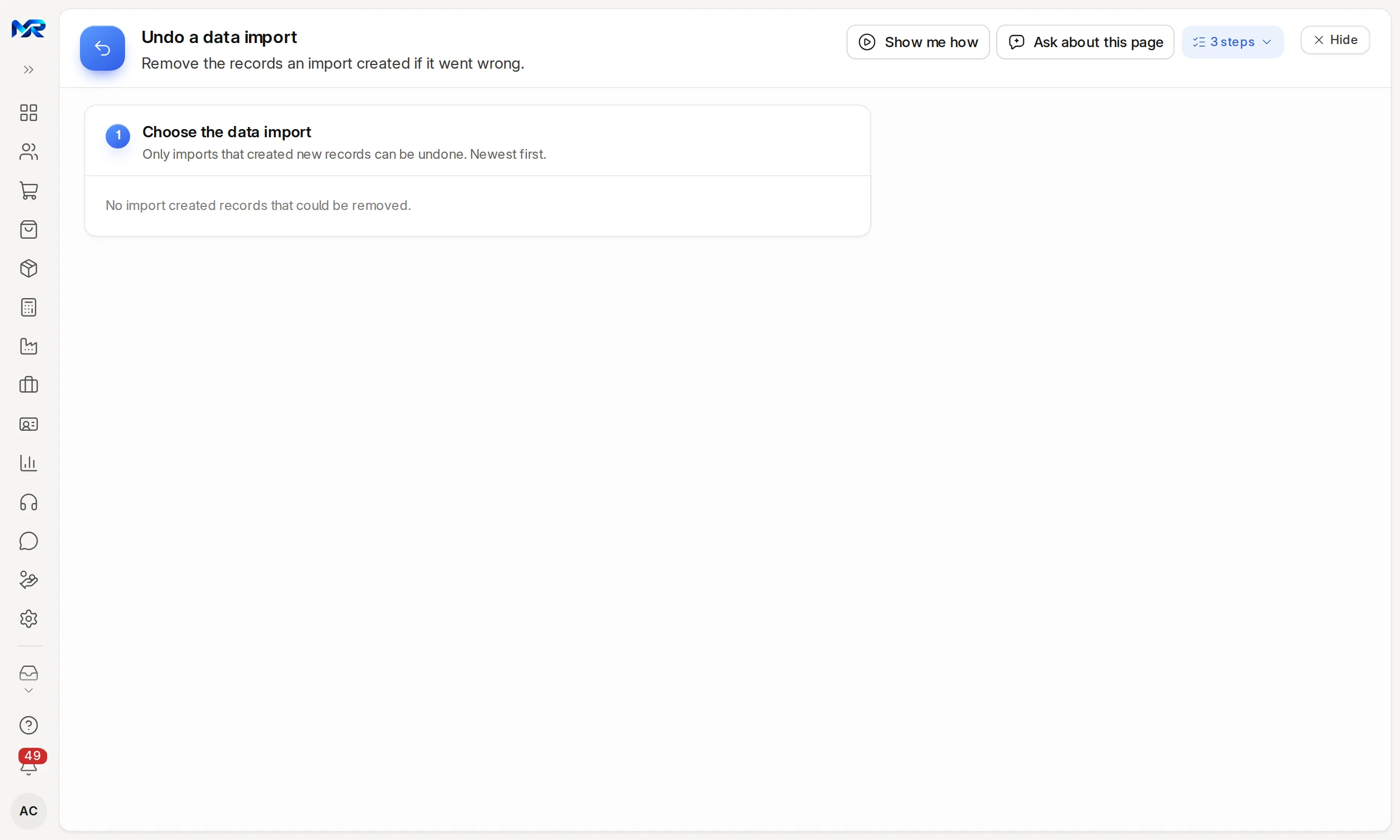
Made a mistake? Press Undo this import on the result, or open Undo a data import and pick the import. Read what Will be deleted and what Will be kept, type the record type to confirm and press Delete … records. Submitted records and records other documents use are kept, and the log lists each one. Only an import that added new records can be undone.
Bring data in from Tally
Section titled “Bring data in from Tally”MyRecords imports from Tally: customers and suppliers from the party ledgers, stock groups, units, godowns and stock items, opening stock, bills of materials and Day Book vouchers (as journal entries). It does not build your chart of accounts. It has been tested on Tally’s own sample export.
- Bring the masters first. Every Tally ledger must exist as an account, and every party ledger as a customer or supplier, before the vouchers can come in.
- In Tally, export the Day Book as XML.
- Press Import from Tally (on Import data, or on the Journal entries list) and choose the file. It is checked first and nothing is posted until you confirm; if anything is missing, the list says what to create or fix. The import is all-or-nothing.
- Tally imports lists every import with what it posted. A voucher already imported is skipped if the file comes in again, and Undo cancels the whole batch’s journals (nothing is deleted).
Opening stock can come from a Tally stock items export: see Inventory.
Industry packs
Section titled “Industry packs”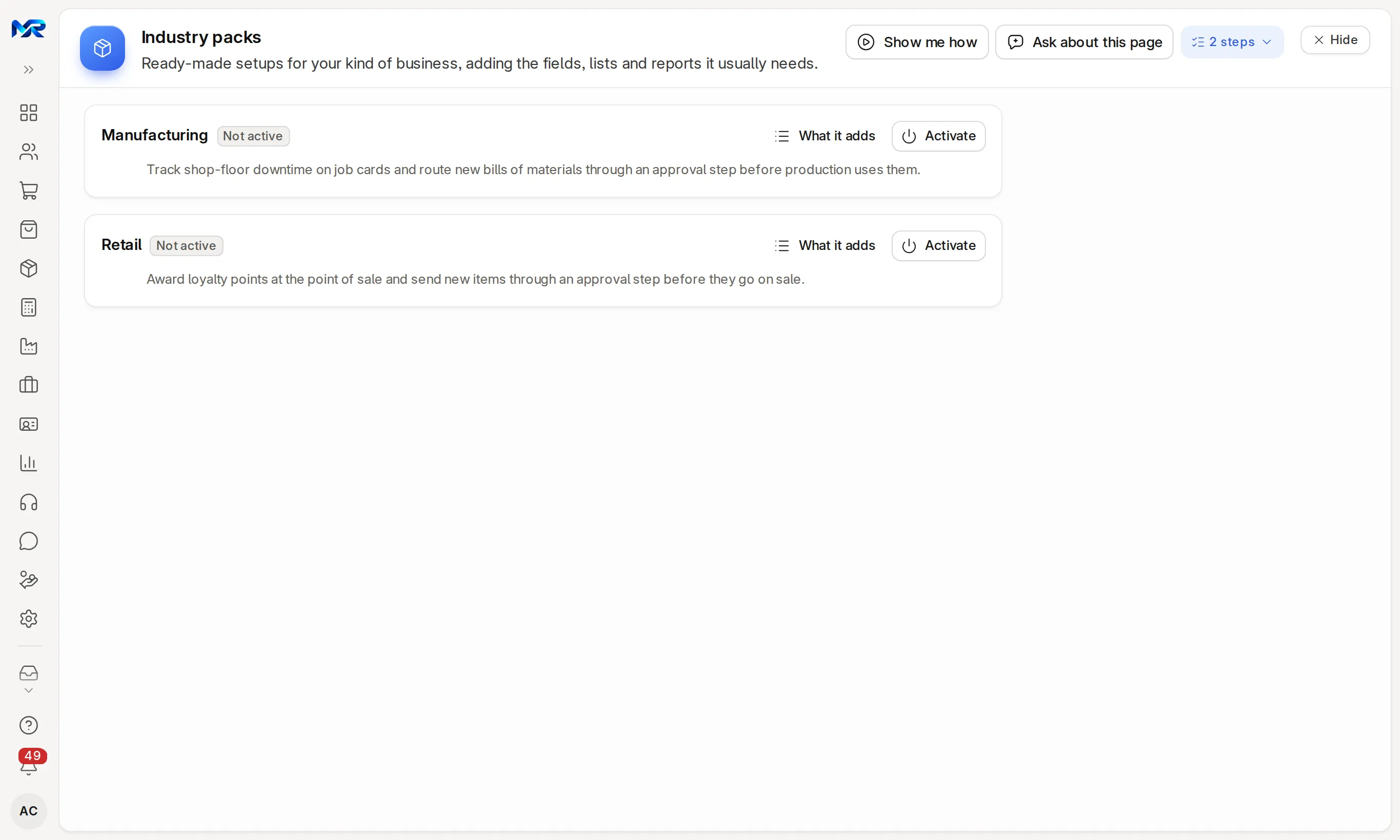
Ready-made setups for a kind of business. A pack adds fields, statuses, approval steps and a floor shortcut page (Manufacturing Floor or Retail Floor); it adds no reports, roles or access packs. Two packs exist: Manufacturing (shop-floor downtime on job cards, an approval step for new bills of materials) and Retail (loyalty points at the till, an approval step for new items). What it adds lists a pack’s fields, approval steps and next steps. Press Activate to add one, Deactivate to remove it; deactivating hides what it added and deletes nothing.
The Help page at the foot of the rail collects the guides for the screen you are on and the walkthroughs for the top jobs. Everyone has it, whatever apps they use.
Still stuck?
Ask the team that set it up.
In MyRecords, Show me how walks you through any page. For your plan or a change, write to us.
- Updates and fixes included
- Changes whenever you want