
Inventory
Inventory is what you stock, where it is, and every movement in and out. Storekeepers own it; sales and purchase staff can see items, warehouses and stock levels.
Most of its everyday pages are built for a barcode scanner or a phone in the godown.
The Inventory home
Section titled “The Inventory home”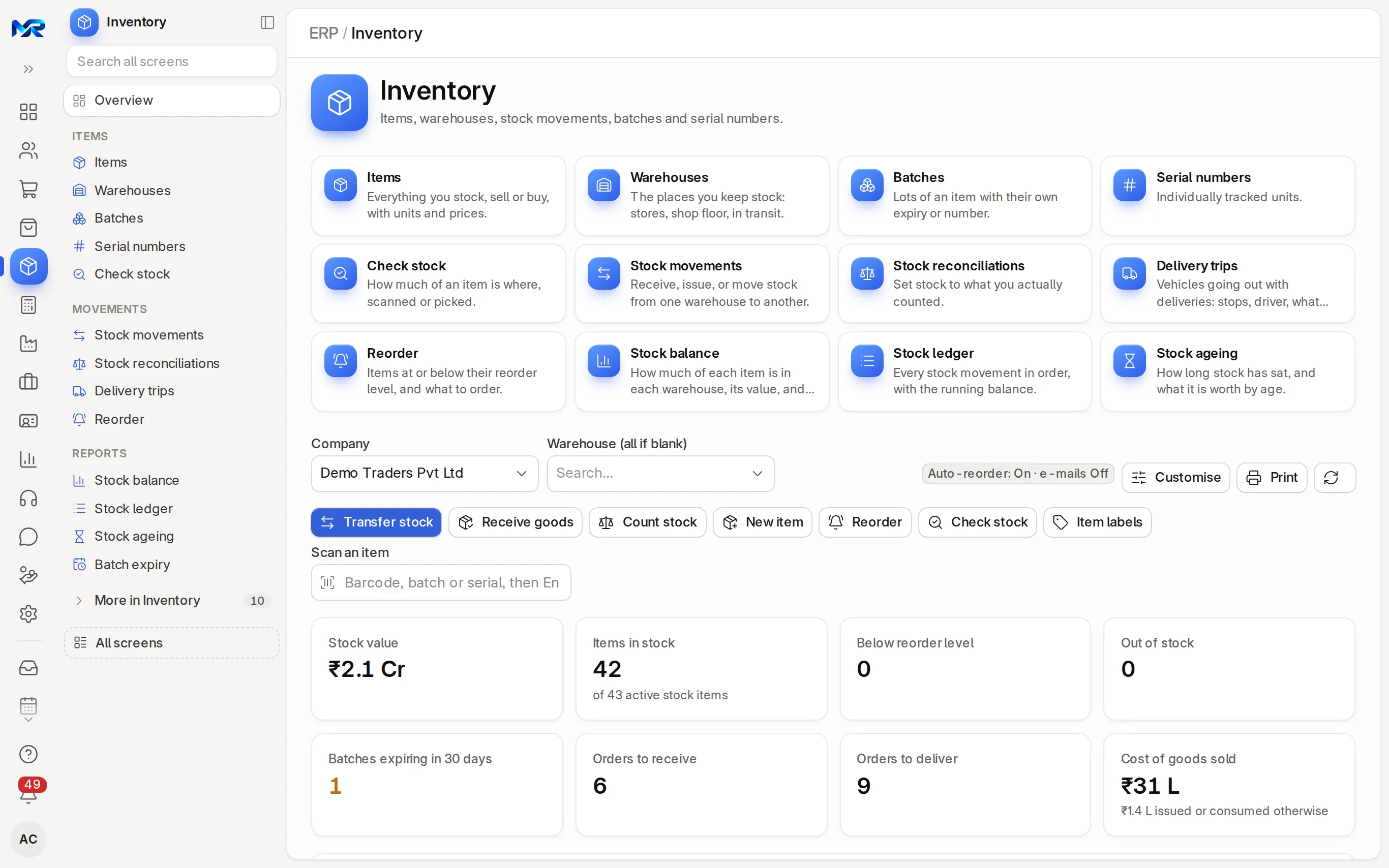
Company and Warehouse (all if blank) at the top narrow every figure on the page. A tag says whether automatic reordering is on; Customise hides or shows parts of the page and Print gives the dashboard or the reorder list by supplier as a PDF.
- Action buttons: Transfer stock (opens Move stock), Receive goods, Count stock, New item, Reorder, Check stock and Item labels (tick items on the list, then print their barcode labels).
- Scan an item: scan or type a barcode, batch or serial number and press Enter to open it.
- Key figures: stock value, items in stock, below reorder level, out of stock, batches expiring in 30 days, orders to receive, orders to deliver and cost of goods sold.
- AI brief: Write the brief sums up the figures; Ask answers a question such as “what is running low in the main godown?” (needs the AI Assistant add-on).
- Charts, for the period under Movement:: stock value by warehouse, by item group and by age; goods in and out by month; the most consumed items. Capacity used shows how full each putaway rule’s space is.
- To-do lists: Reorder now, Batches expiring in 30 days (tick them, pick To warehouse and press Move ticked), Drafts to submit (Submit ticked) and In transit, not yet received.
The everyday menu
Section titled “The everyday menu”| Entry | What it is for |
|---|---|
| Items | Everything you stock, sell or buy: code, name, group, unit, HSN/SAC, prices, tax template, barcodes |
| Warehouses | The places stock is kept (stores, work in progress, finished goods, goods in transit) |
| Batches | Lots of an item with their own number or expiry date |
| Serial numbers | Individually tracked units |
| Check stock | How much of an item is where, without running a report |
| Stock movements | Receive, issue, or move stock from one warehouse to another (the full form) |
| Stock reconciliations | Counts that set stock to what was actually counted |
| Delivery trips | Vehicles going out with deliveries: stops, driver, what was delivered |
| Reorder | Items at their reorder level, turned into requests or orders |
| Stock balance | How much of each item is in each warehouse, with its value |
| Stock ledger | Every stock movement in order, with the running balance and value |
| Stock ageing | How long stock has sat, and what it is worth by age |
| Batch expiry | Batches with stock, soonest expiry first |
The menu groups them under Items, Movements and Reports. More in Inventory holds the scanner pages Count stock and Move stock, Make item variants, pick lists, deliveries, goods receipts, packing slips, item groups, units of measure and brands.
Add an item
Section titled “Add an item”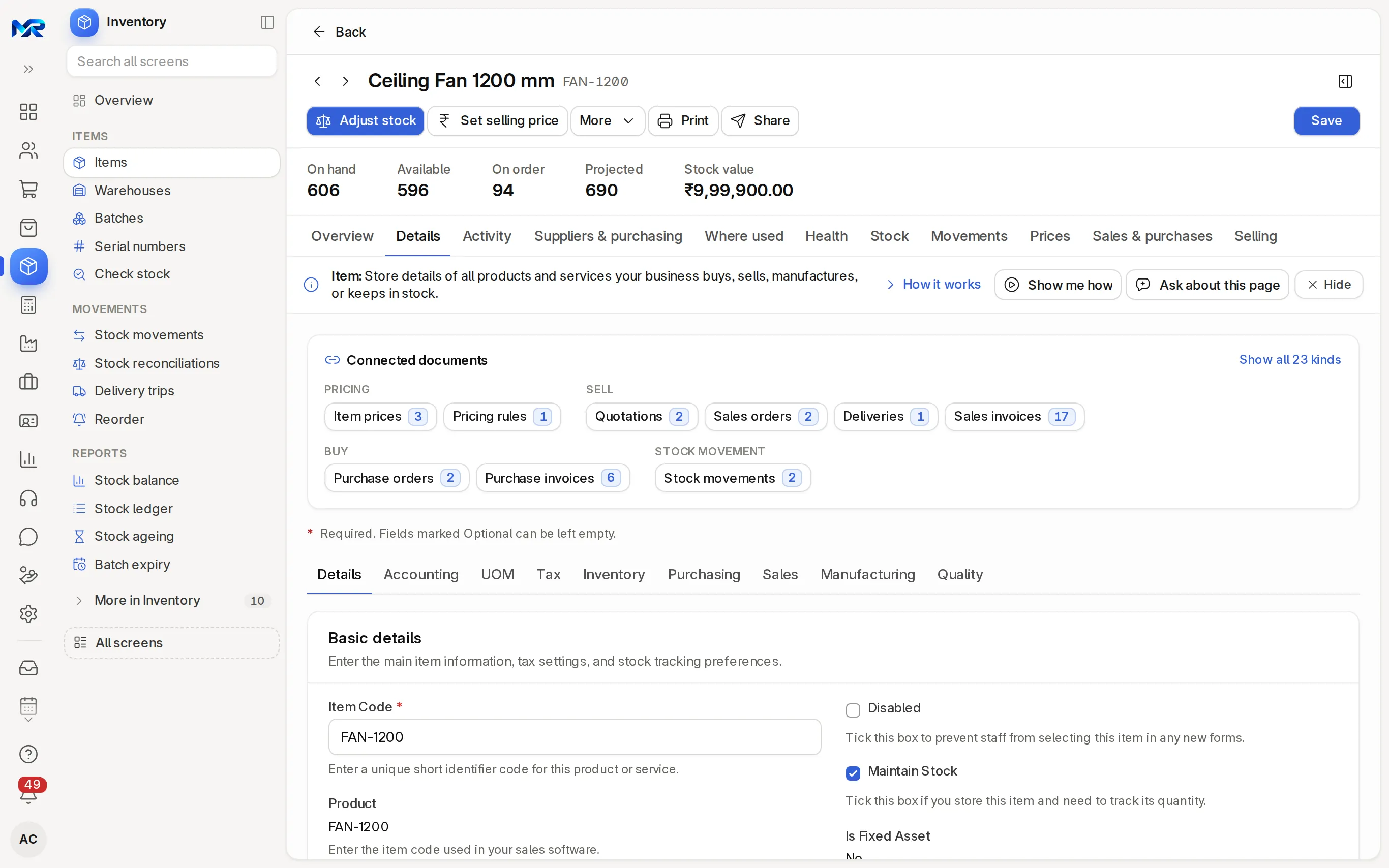
- Press New item on the home, or Items › New.
- Fill the fields marked *: Item Code, Item Group and Default Unit of Measure (it starts as Nos). Add the Item Name and the HSN/SAC code for GST.
- Leave Maintain Stock ticked for goods you keep in stock; untick it for services. Allow Sales and Allow Purchase say where the item can be used; Standard Selling Rate is its selling price.
- The other tabs hold the rest: the tax template on Tax, the default warehouse on Accounting, reorder levels, barcodes, batches and serial numbers on Inventory.
- Press Save.
For a range in sizes or colours, make one template item, then open Make item variants: pick the template, tick the values of each attribute, press Show combinations, check each row (item code, selling rate, barcode, opening stock) and press Create variants. Combinations that already exist are skipped.
Bring in opening stock
Section titled “Bring in opening stock”- Open Count stock, choose the warehouse and set Purpose to Opening Stock.
- Enter each item’s quantity and rate, or press Opening stock from Excel or Tally and load a sheet (item, warehouse, quantity, rate, and batch and expiry if you track them) or a Tally stock items export.
- Post it. It becomes one opening stock count against Temporary Opening.
Move stock
Section titled “Move stock”- Press Transfer stock on the home. The Move stock page opens on Transfer.
- Pick From warehouse and To warehouse.
- Scan each item (each scan adds one) or type the quantity.
- Move it now, or Save as draft for someone else to submit. Lines needing more than the source holds turn red.
With the AI Assistant add-on, you can also say or type the move (“move 20 bags cement from Main to Site 2”) and press Fill from words (AI).
The same page does the other movements: Receive for stock that came without a supplier (a sample, a found carton), Issue for stock used inside the business, and Repack to turn items used up into items made (a bag into packets). Goods from a supplier go on a goods receipt instead: see Purchasing. Deliveries to customers are made in Sales.
Count stock
Section titled “Count stock”- Press Count stock. Choose the Warehouse to count (and Only this item group if you count in parts).
- Press Fetch items, then scan or type what you counted. Blind count hides the system quantity, so counters count what they see.
- Review the differences with Differences only. Once saved, the count’s Count sheet tab flags lines that differ a lot from the books and asks you to recount them or note the reason.
- Press Post adjustment. Stock is set to your count; only the lines that differ are posted, and the difference in value goes to the stock adjustment account.
Posting a count needs the Stock Manager role; a stock counter presses Save draft for review for a manager to post. Suggest what to count picks the items due for a count: the top 80% of stock value every 30 days, the next 15% every 90, the rest every 180. With the AI Assistant add-on, Say or snap the counts fills them from your voice or a shelf photo, for you to check.
Reorder and expiry
Section titled “Reorder and expiry”- Reorder lists the items that have run down to their reorder level (set on the item’s Inventory tab) and makes the material requests or purchase orders for them, grouped by supplier.
- Batch expiry lists the batches you still hold, soonest expiry first, with what will not sell in time.
- Stock ageing shows how long stock has been lying, in steps of 30, 60 and 90 days.
Check stock and the stock reports
Section titled “Check stock and the stock reports”- Check stock: pick the item or scan its barcode to see what is in each warehouse, what is reserved for orders and what it is worth. An item’s own Stock tab shows the same figures.
- Stock balance: every item in every warehouse, with quantity and value. Its item and warehouse filters take several values at once.
- Stock ledger: every movement in order, with the running balance and valuation.
How to check it worked
Section titled “How to check it worked”- After a receipt or transfer, Check stock for the item shows the new quantity in each warehouse.
- After a count, the item’s balance equals the number you counted.
- Stock balance for an item equals what Check stock shows, and the stock value agrees with the stock accounts in the books.
Who sees this
Section titled “Who sees this”- Stock User, Stock Manager and Item Manager own the movements, counts and items. Posting a count needs Stock Manager.
- Sales people see items, warehouses and stock levels read-only: an item’s Stock tab shows what is in each warehouse, reserved and on order, without any right to change stock.
- Buyers see items and stock levels to plan their orders.
Still stuck?
Ask the team that set it up.
In MyRecords, Show me how walks you through any page. For your plan or a change, write to us.
- Updates and fixes included
- Changes whenever you want