
CRM
CRM is where the sales team keeps track of everyone who might buy.
A lead is a person who showed interest; a deal is an opportunity with a value, a stage and an expected close date. Around them sit the organizations and contacts, and every call, e-mail, note, task and meeting. Sales people work their own leads and deals; a Sales Manager sees everyone’s.
The CRM home
Section titled “The CRM home”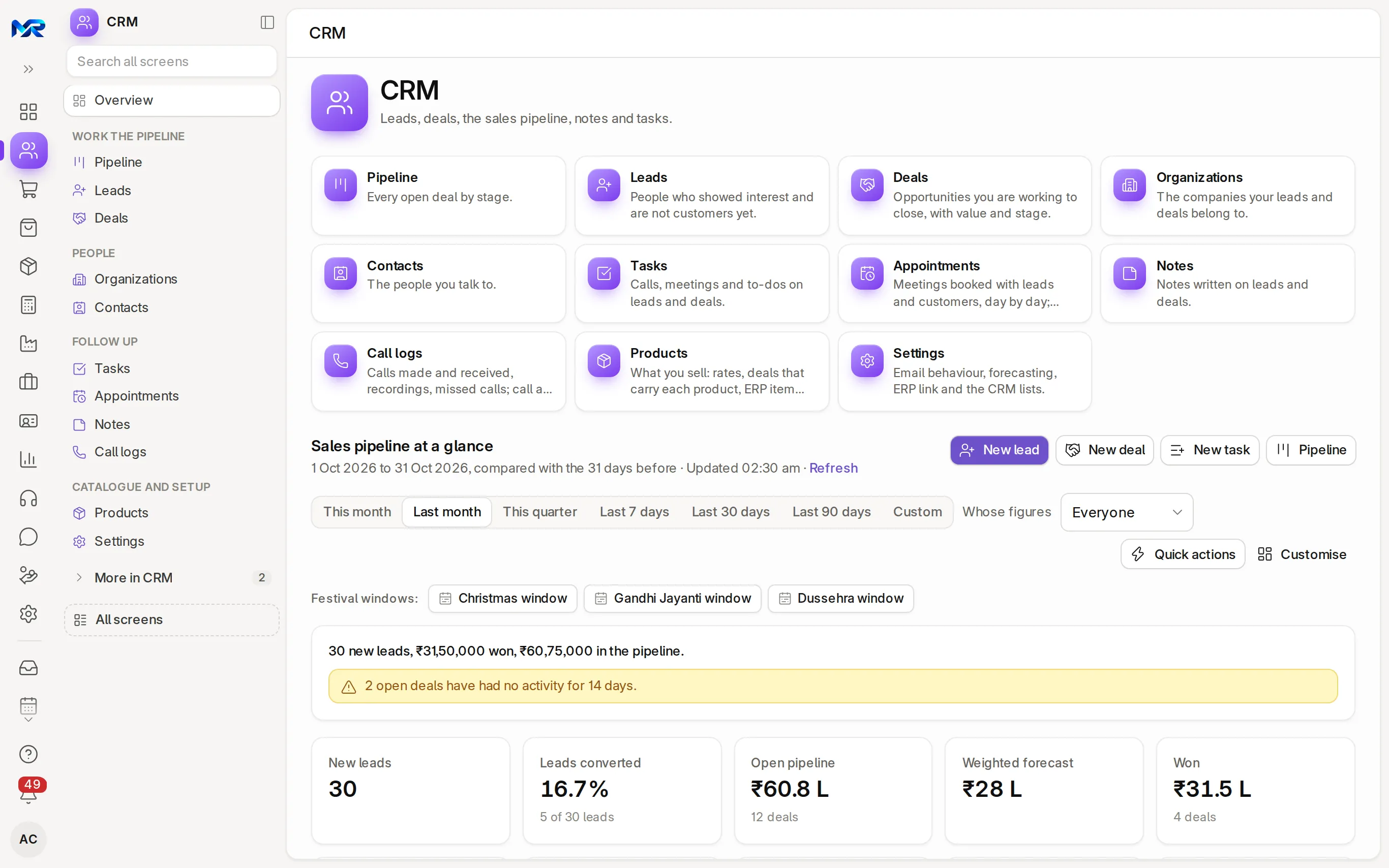
- New lead, New deal, New task and Pipeline start the day’s work; Refresh reads the figures again.
- The period tabs (from This month to Last 90 days or Custom) and Whose figures (everyone, or one salesperson) change every figure on the page.
- Key figures: new leads, leads converted, open pipeline, weighted forecast, won, lost, win rate, average won deal, and days to close a deal and a lead.
- Follow-up lists: My tasks due, Closing this month, Close date passed, No change in 14 days and Leads awaiting a reply.
- Charts: the funnel from lead to won, won and weighted forecast by close month, open pipeline by stage, where leads came from, deals by territory and source. Leaderboard shows each salesperson’s wins, open deals and new leads; Latest activity shows what the team logged.
The everyday menu
Section titled “The everyday menu”| Group | Entry | What it is for |
|---|---|---|
| Work the pipeline | Pipeline | Every open deal by stage, as cards you drag between stages |
| Leads | People who showed interest and are not customers yet | |
| Deals | Opportunities you are working to close, with value and stage | |
| People | Organizations | The companies your leads and deals belong to |
| Contacts | The people you talk to | |
| Follow up | Tasks | Calls, meetings and to-dos on leads and deals |
| Appointments | Meetings booked with leads and customers, day by day; book a free slot | |
| Notes | Notes written on leads and deals | |
| Call logs | Calls made and received, recordings, missed calls; call a number | |
| Catalogue and setup | Products | What you sell: rates, deals that carry each product, ERP item link |
| Settings | E-mail behaviour, forecasting, ERP link and the CRM lists |
Work a lead
Section titled “Work a lead”- Open a lead from Leads, the pipeline, the CRM home or Ctrl K. Press New on Leads to add one; Scan a visiting card fills the new lead from a photo of the card.
- Read the key figures: lead age, days in this stage, lead score, temperature, source, last contacted and open tasks.
- Move the lead along its stages (New, Contacted, Nurture, Qualified, Converted, Unqualified, Junk) by clicking a stage, or from the stage pill next to the name. A lost-type stage asks for the reason.
- Contact the person with Call, WhatsApp or Email at the top right.
- Record the work in the tabs: Activity (everything in order), Emails, Calls, Notes, Tasks (with a due date and an assignee; tick it done when finished), Products and Data (the full form).
- Keep the side panel up to date: Details and Person save as you change them. Type @ in Comments to mention a colleague. Stage history and What changed show the record’s past.
- When the lead shows real interest, press Convert to deal. The deal is created with its organization and contact (or you pick existing ones), and the lead links to it.
Work a deal
Section titled “Work a deal”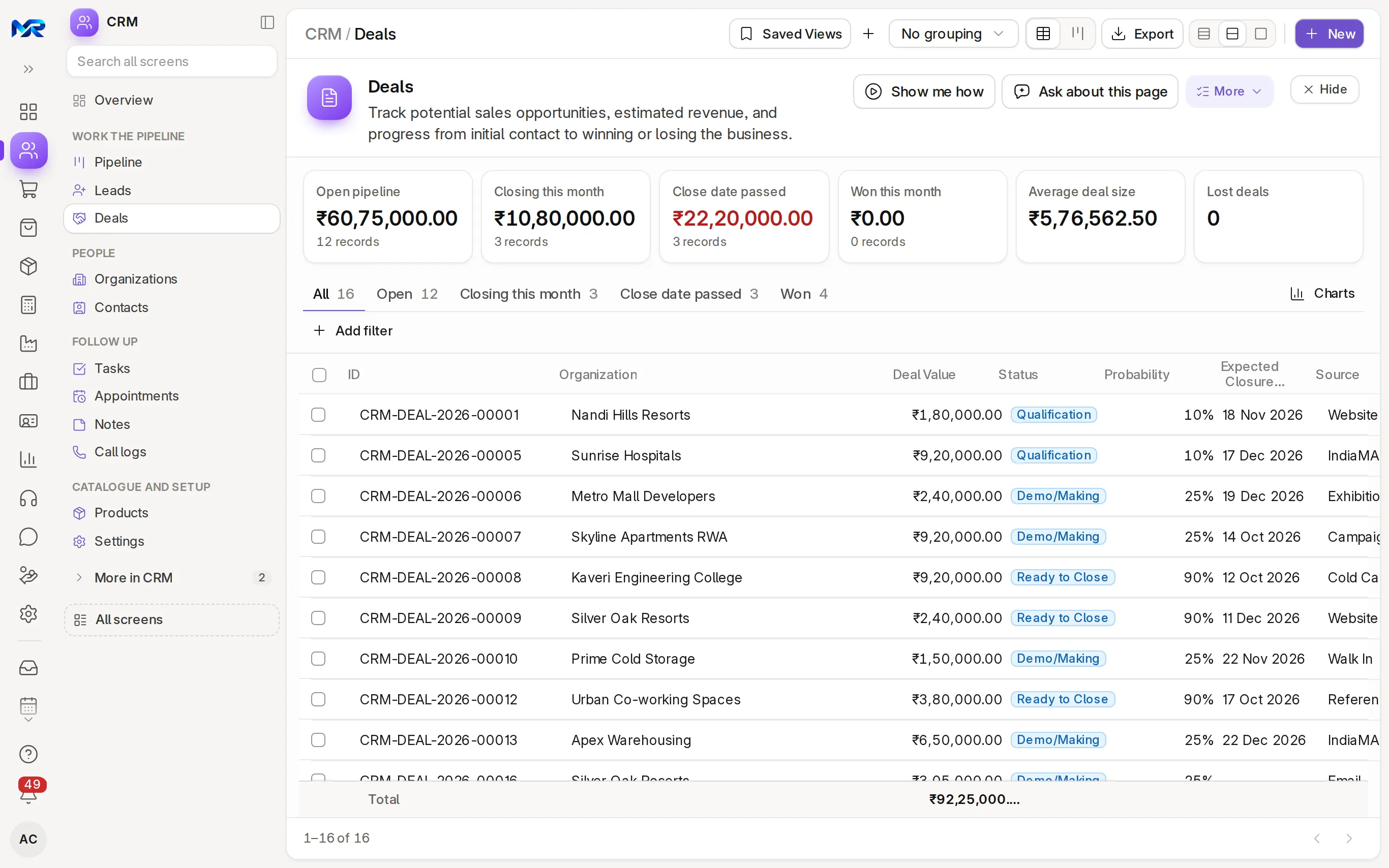
A deal page is built the same way, with its own figures: deal value, probability, weighted value, expected close, deal age, days in this stage and open tasks.
- Move the deal through its stages: Qualification, Demo/Making, Proposal/Quotation, Negotiation, Ready to Close.
- Add the products and, when the customer asks for a price, the quotation from the Quotations tab.
- Close it with Mark won or Mark lost at the top right. Won asks for the date and final value; lost needs a reason.
- For a won deal, press Create customer in ERP. The customer is made in the ERP, linked to the organization and contact, so Sales can quote and invoice. A Sales Manager can also set CRM settings to create it when a deal reaches a chosen stage.
The pipeline board
Section titled “The pipeline board”- Open Pipeline. Each column is a deal stage, with its count, value and value weighted by the stage probability.
- Drag a deal card to the next column as the deal moves forward. Dropping on Won asks for the date and final value; on Lost, for the reason.
- Filter by owner, territory, source or close date, or switch to leads to work them the same way. Won and lost deals are folded away; tick Show won and lost to see them.
Save a board with your own filters (Save board), one per salesperson or territory for example, and share it with the whole sales team if you like.
Calls, appointments and lead sources
Section titled “Calls, appointments and lead sources”- Call logs list calls made and received, with recordings and missed calls, linked to the lead, deal or ticket. Call a number and recordings work once you connect your Exotel or Twilio account; without one, call from your phone and Log a call.
- Appointments shows the week’s meetings; Book appointment picks a free slot and links it to a lead, deal or customer.
- Leads from IndiaMART come in by themselves once you connect your account; leads from Facebook lead ads too, when the Facebook lead sync module is part of your plan. Leads you already have in a spreadsheet can be loaded with Data import.
Signals and AI
Section titled “Signals and AI”Signals on a lead shows how likely it is to convert and why, by comparing its source, industry and territory with your past leads. These need the AI Assistant add-on (and an AI key on your own server), and AI switched on for your role:
- Summarise writes a short summary of the lead, and AI suggests proposes its source, industry and temperature from their last e-mail.
- On a deal, AI help answers a question about the deal, Find products reads the products asked for in the notes and e-mails, Probability estimates the chance of winning and, on a lost deal, Lost reason suggests which of your lost reasons fits.
- Scan a visiting card reads the card into a new lead.
How to check it worked
Section titled “How to check it worked”- A converted lead says “This lead has been converted to a deal”, with a link to the deal.
- The deal shows in the pipeline’s column for its stage, and the CRM home’s figures include it.
- A won deal’s customer appears in Sales › Customers.
Who sees this
Section titled “Who sees this”- Sales User works their own leads and deals. Sales Manager sees everyone’s and changes the CRM settings: stages, lost reasons and lists.
- A lead or deal’s notes, tasks and calls are visible to everyone who can open that record.
- Leads and deals also appear on the customer’s Party 360.
Still stuck?
Ask the team that set it up.
In MyRecords, Show me how walks you through any page. For your plan or a change, write to us.
- Updates and fixes included
- Changes whenever you want