
Support
Support is where your team answers customers. Every question, complaint or request becomes a ticket.
Each ticket has a number, a status, a priority and a service level (SLA): the promised time to reply and to resolve. Agents reply from the ticket; a manager watches the team’s figures, the SLA alerts and the customer ratings. The help articles (your knowledge base) hold the answers agents use in their replies.
The Support home
Section titled “The Support home”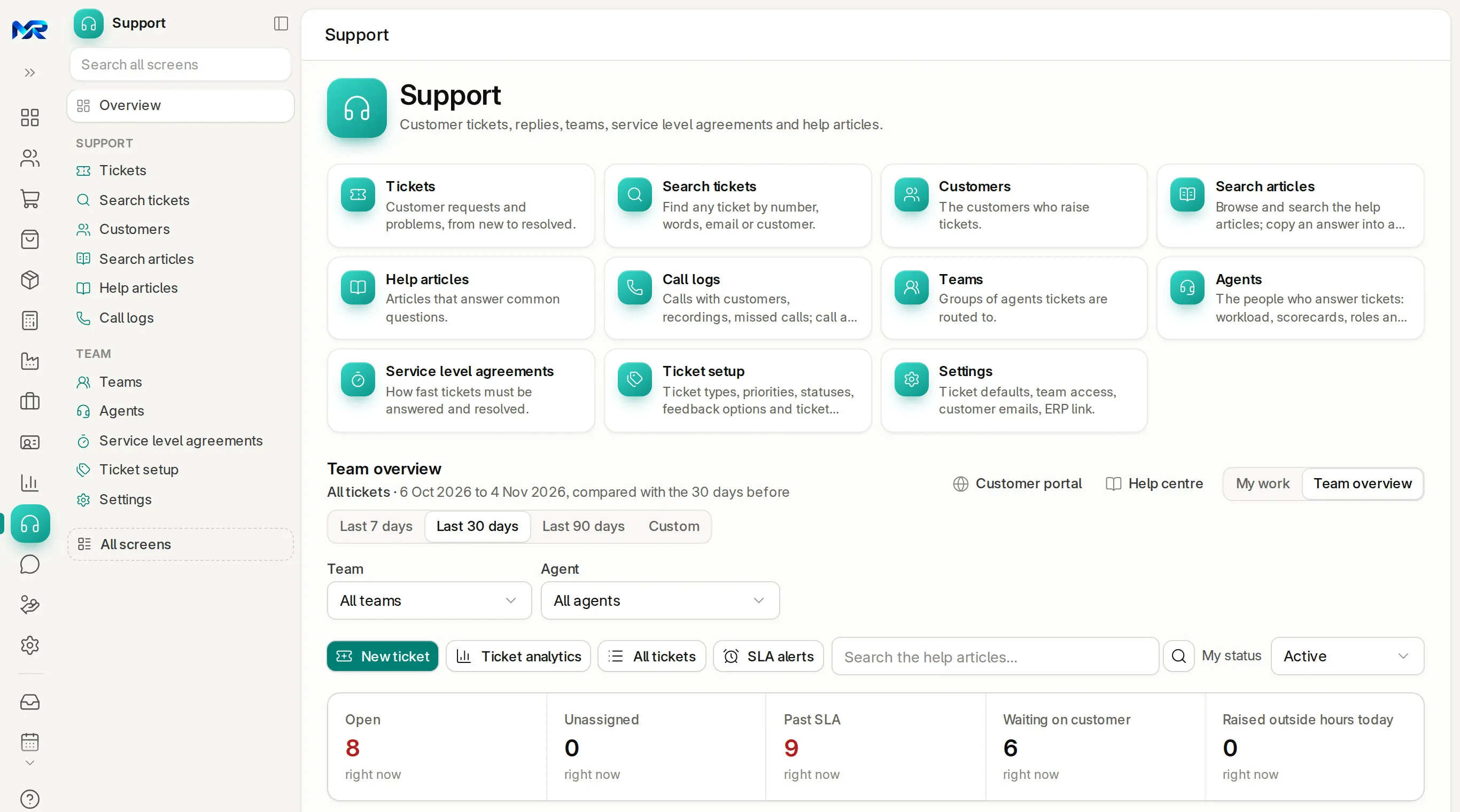
- A manager switches between My work (your own tickets) and Team overview; an agent sees My work. Customer portal and Help centre open the pages your customers see.
- The period tabs (Last 7 days, Last 30 days, Last 90 days, Custom) and the Team and Agent pickers change every figure on the page.
- Buttons: New ticket (for a customer who called or walked in), Ticket analytics, All tickets and SLA alerts. The box next to them searches the help articles. My status tells the team whether you are active or away; while you are away, new tickets are not assigned to you.
- Live counts: open, unassigned, past SLA, waiting on customer, raised outside hours today.
- Key figures for the period: tickets raised, resolved, resolved within SLA, average first response, average resolution and customer rating, each against the period before.
- Work lists: SLA due soon, Newly assigned to me, Waiting on me and Unassigned.
- Agent load: each agent’s status, open tickets, past SLA, resolved, first response and rating. Recent feedback shows the customers’ ratings and comments; tick Only 1 and 2 stars to see the unhappy ones.
- How work flows: Open → Replied → Resolved → Closed, with the number of tickets at each step.
The everyday menu
Section titled “The everyday menu”| Group | Entry | What it is for |
|---|---|---|
| Support | Tickets | Customer requests and problems, from new to resolved |
| Search tickets | Find any ticket by number, words, e-mail or customer | |
| Customers | The customers who raise tickets | |
| Search articles | Browse and search the help articles; copy an answer into a reply | |
| Help articles | Articles that answer common questions | |
| Call logs | Calls with customers, recordings, missed calls; call a number (shared with CRM) | |
| Team | Teams | Groups of agents tickets are routed to |
| Agents | The people who answer tickets: workload, scorecards, roles and invitations | |
| Service level agreements | How fast tickets must be answered and resolved | |
| Ticket setup | Ticket types, priorities, statuses, feedback options and ticket forms | |
| Settings | Ticket defaults, team access, customer e-mails, ERP link |
Answer a ticket
Section titled “Answer a ticket”- Open the ticket from Tickets, a work list on the home, or Ctrl K. Assign to me takes it; the arrows step to the previous or next ticket of your list.
- Read the SLA strip: First response (met or not, and how fast), Resolution, the SLA that applies, the ticket’s Age and when the last reply went out. “Paused” means the clock is stopped while you wait on the customer.
- Read the conversation, oldest first: the customer’s e-mails, your team’s replies and internal notes.
- In the box at the bottom, choose Reply (e-mailed to the customer) or Internal note (only your team sees it). Insert article pastes a help article; Insert a saved reply… pastes a standard answer. Add Cc / Bcc or Attach files if needed.
- Press Send, or Send and resolve when this reply solves the problem.
- In the side panel, under Ticket details, set Status (Open, Replied, Resolved, Closed), Priority, Type, Team and Assigned to. Changes there save straight away.
The side panel also shows the ticket’s Tags, the customer and their earlier tickets, Similar tickets that may already hold the answer, and Customer feedback, where Ask by e-mail or Ask on WhatsApp requests a rating. Merge joins a duplicate into another ticket; Split into new ticket moves one e-mail and the rest of the thread out.
How to check it worked
Section titled “How to check it worked”- After your first reply, the ticket shows Replied and the SLA strip shows the first response as met or missed.
- After Send and resolve, it shows Resolved with the resolution date, and leaves your Waiting on me list.
- The ticket’s conversation lists every reply, note and change in order.
Raise a ticket for a caller
Section titled “Raise a ticket for a caller”- Press New ticket on the Support home.
- Pick the template if you have more than one. Type the Subject and the Customer e-mail, and set the customer, priority, type and team, then any fields the template asks for.
- Describe the problem and press Create ticket. The ticket gets its number and the SLA that applies; replies go to the customer’s e-mail.
Service levels
Section titled “Service levels”Service level agreements set how fast tickets must be answered and resolved, per priority, within your working hours and holidays. A new ticket gets its SLA when it is created. SLA alerts and SLA due soon on the home list the tickets close to their deadline; the past-SLA count turns red.
Help articles
Section titled “Help articles”- Use Search articles while you answer: type a few words of the question (“invoice copy”) and open the article.
- Paste it into your reply with Insert article, or press Copy text.
- When customers ask something no article answers, write it once with New article, in the right category; it starts as a draft until you press Publish. Which questions have no article? lists the gaps.
Tickets by e-mail and the customer portal
Section titled “Tickets by e-mail and the customer portal”- E-mail: once your support inbox is connected (Support settings › Support email › Connect an inbox), each incoming e-mail becomes a ticket and your replies go back by e-mail. If Support is not part of your plan, no tickets are made and the mail stays in the mailbox.
- Customer portal and Help centre are off until you switch them on under Support settings › Your public pages. On the portal, customers sign in to raise tickets, follow them, close them and rate them, and read the help articles. They never see the agents’ screens or internal notes.
AI in Support
Section titled “AI in Support”These need the AI Assistant add-on (and an AI key on your own server), and AI switched on for your role:
- On an agent’s scorecard, Coaching notes turn the figures into advice.
- On a customer, Explain and suggest next steps explains their health score.
- Ticket setup suggests new ticket types from the subjects of tickets that have none.
Who sees this
Section titled “Who sees this”- Agent answers tickets; Agent Manager also sees everyone’s figures and changes the SLAs, ticket setup and Support settings.
- An agent sees My work and their own figures; agents in no team get no team tickets.
- Customers use the customer portal, not MyRecords itself.
Still stuck?
Ask the team that set it up.
In MyRecords, Show me how walks you through any page. For your plan or a change, write to us.
- Updates and fixes included
- Changes whenever you want