
Users and roles
MyRecords has unlimited users: add everyone who should work in it. Each person sees only what their job needs.
This page is for your administrator, and for anyone who wonders why they see what they see. The modules themselves (Sales, HR, Lending …) are the ones in your plan.
The rule: you see only what you can use
Section titled “The rule: you see only what you can use”- An app, a menu entry, a tile, a count or a button appears only if your roles let you use it. An employee who uses HR only for themselves sees My HR, Chat and the shared pages; a sales person sees CRM and Sales, not the HR screens.
- If you may only view a kind of record, you see it without Save, New or any other edit control.
- If you open the address of a page you may not use (an old link, a typed address), you get a polite page, “You don’t have access to this”, with Back and Go to Apps.
- Hiding is only the visible half: every request is checked again, so a hidden page’s data cannot be reached another way.
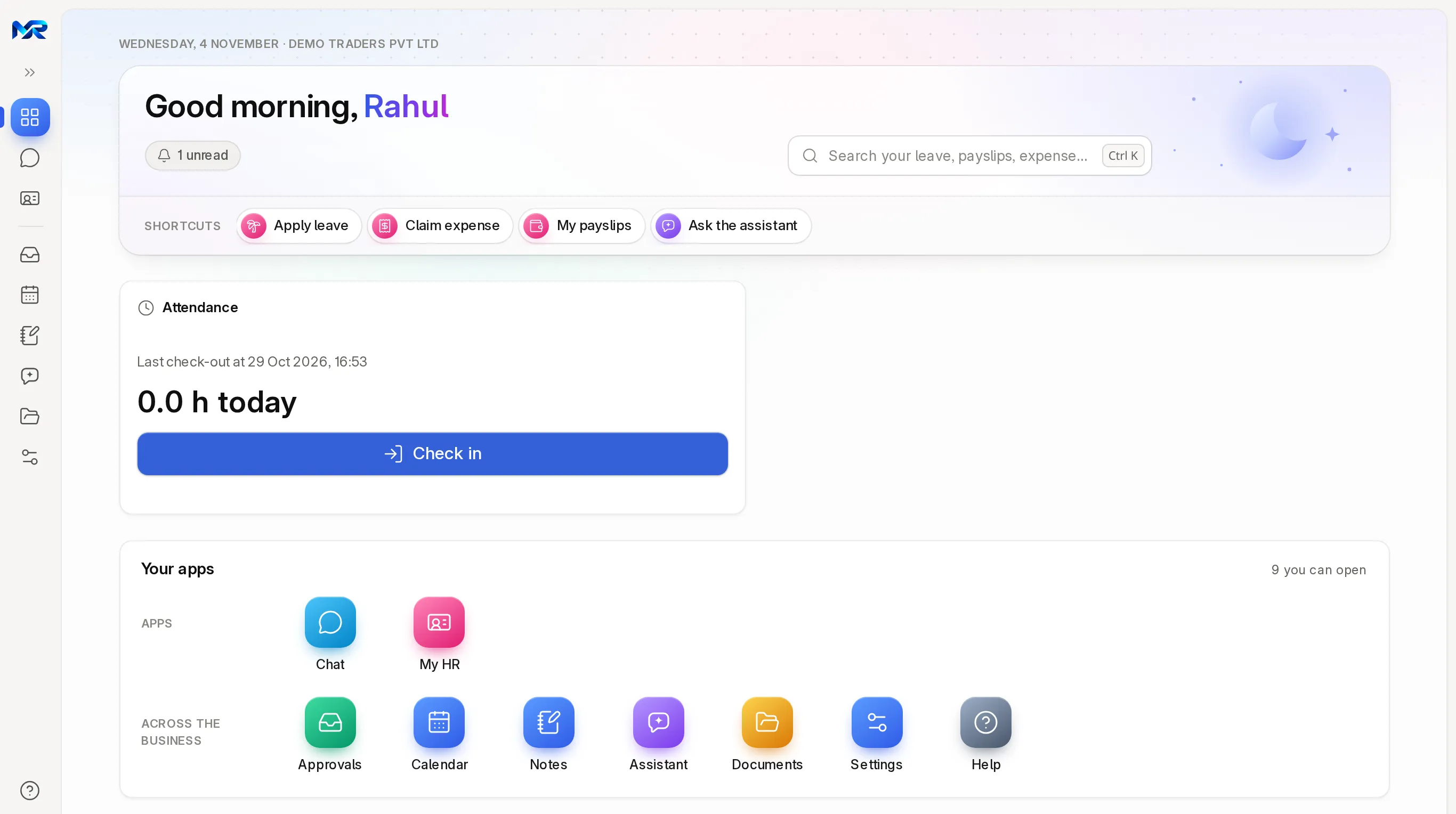
What each job sees
Section titled “What each job sees”| Job (access pack) | Apps on their rail |
|---|---|
| Owner or administrator | Every app in your plan, the ERP work areas, Administration |
| Sales | CRM, Sales, Inventory, Projects & Assets, Analytics, Chat, My HR |
| Accounts | Accounting first, then Sales, Purchasing, Inventory, Projects & Assets, Analytics, Chat, My HR |
| HR | HR and Chat (HR is the full app, so no separate My HR) |
| Support | Support, Chat, My HR |
| Employee | My HR and Chat |
Everyone also has the shared pages: Approvals, Calendar, Notes, Assistant (with the AI Assistant add-on), Documents, Settings and Help; Party 360 only for people who can see customers, suppliers, leads or employees. Sales people get Inventory and Projects & Assets to look things up (stock before promising a date), not to change them.
Some records are always limited to the person: an employee sees only their own leave, payslips, expense claims and loans, whatever else they can open.
Add a person
Section titled “Add a person”- On the Administration home press Invite a team member (or Administration › Users › New).
- Type the Email they will sign in with, the First name and, if you like, the Last name and Mobile (optional).
- Under “What will they work on?” tick one or more access packs.
- Leave “Email them a link to set their password” ticked and press Send invite. They set their own password from the e-mail. Outgoing e-mail must be set up first.
Until they sign in, they are listed under Invitations waiting. Access ends on, on the user’s record, switches the account off by itself on a date, for temporary staff; Invite your CA in Accounting gives your CA an access pack (Accounts by default) that ends on a date you pick.
Access packs
Section titled “Access packs”An access pack is a named bundle of roles for one job, so you give a new person one pack instead of a dozen roles. Ten packs come with MyRecords:
| Pack | Gives |
|---|---|
| Employee | Employee, Chat user (My HR self-service and Chat) |
| Sales | Sales User, Sales Manager, Analytics user, Employee, Chat user |
| Purchasing | Purchase User, Purchase Manager, Stock User, Employee, Chat user |
| Inventory | Stock User, Stock Manager, Item Manager, Employee, Chat user |
| Accounts | Accounts User, Accounts Manager, Analytics user, Employee, Chat user |
| Manufacturing | Manufacturing User, Manufacturing Manager, Stock User, Employee, Chat user |
| Projects | Projects User, Projects Manager, Employee, Chat user |
| HR | HR User, HR Manager, Leave Approver, Expense Approver, Employee, Chat user |
| Support | Agent, Employee, Chat user |
| Lending | Loan Manager, Loan Officer, Loan Appraiser, Loan Processor, Loan Underwriter, Loan LOS User, Loan Reporter, Employee, Chat user |
- Adding a pack gives its roles. Removing a pack does not take its roles away (a role may come from another pack too): untick the roles themselves.
- The Employee role works only once the person is linked to an employee record.
- Only an administrator can change a pack. A pack you changed is never overwritten by an upgrade.
Limit a person to a company, branch or warehouse
Section titled “Limit a person to a company, branch or warehouse”On the person’s record, open the Access tab and press Limit to a company or branch. They then see only that company’s records. The same limit can be set for a territory or a warehouse under User permissions. Records they can see and What they can do on the same tab show the result.
When someone says “I can’t see it”, use Why can’t someone see something? on the Administration home before changing any role: it names the pack or role that is missing.
When someone leaves
Section titled “When someone leaves”Untick Enabled on the Details tab of their record instead of deleting it. They can no longer sign in, and everything they did stays on record under their name.
Signing in safely
Section titled “Signing in safely”- Passwords: everyone sets their own, from the invite or Forgot your password?, at least 8 characters. Weak and commonly leaked passwords are refused. After 5 wrong attempts in a row, sign-in pauses for that account.
- Two-step sign-in: a code from an authenticator app after the password. Switch it on with Turn on two-factor sign-in in the Security review on the Administration home, for System Managers or for everyone; each person sets it up at their next sign-in and can keep 10 one-time recovery codes for a lost phone. Codes by SMS are available once your SMS account is connected.
- Single sign-on: staff can sign in with your company’s identity provider (OpenID Connect or SAML), set up by your administrator.
- Devices: each person sees where they are signed in, and their recent sign-ins, under Settings › Security, with Sign out all others.
Personal data and the audit trail
Section titled “Personal data and the audit trail”- Bank account numbers, PAN, Aadhaar and UAN on employee records are encrypted when stored and shown masked (“•••• 4321”). Only the people and payroll reports that need them can show them.
- Every change to a customer, contact, employee, user or access pack is recorded field by field, and every time someone opens one of those records is recorded too. The record’s history shows who changed what, and who viewed it. The trail cannot be edited or deleted, is checked every night for tampering, and is kept for 8 years.
Approvals, notifications and settings
Section titled “Approvals, notifications and settings”Your administrator also sets, in Administration (the menu, then More in Administration):
| Entry | What it is for |
|---|---|
| Workflows | Approval steps documents go through, with the role allowed at each step and time limits |
| Business rules | Who sees profit figures; ready-made approvals for purchase orders, material requests and expense claims, by amount; bounced e-mail |
| Automations, Notifications | What runs by itself, and the e-mails and alerts sent when something happens |
| Print formats, Letter heads | How documents print, with your logo and address |
| Customise a form, Custom fields | Your own fields on any screen |
| Import data | Load records from a spreadsheet, and undo an import |
| Email accounts, Integrations | Mailboxes, and the outside services (GST portal, payments, WhatsApp, Google) |
| System settings | Language, time zone, password rules, sessions and file uploads |
| AI hub, System health | AI use and cost (with the AI Assistant add-on); backups, background jobs and errors |
| Industry packs | Ready-made setups for manufacturing or retail |
The ready-made approvals in Business rules are off until you press Turn on approvals; the person who made a document can never give its first approval.
Who sees this
Section titled “Who sees this”Administration is for people with the System Manager role. Everyone else sees their own settings under Settings: profile, language, theme, notifications, password and two-step sign-in, then only the company settings they may change.
Still stuck?
Ask the team that set it up.
In MyRecords, Show me how walks you through any page. For your plan or a change, write to us.
- Updates and fixes included
- Changes whenever you want