
Getting started
From the sign-in page to your first piece of work: Home, the menus, search, notifications, your account and the phone.
Everything you see is cut to your job: you get only the apps, buttons and figures you are allowed to use.
Sign in
Section titled “Sign in”- Open the address your company gave you for MyRecords.
- Type your work e-mail or username in Email or username.
- Type your password in Password. The eye at the end shows what you typed.
- Press Sign in.
- If your company asks for two-step sign-in, a second card, Verify it is you, asks for the code from your authenticator app or the one sent to you. Lost your phone? Type one of your recovery codes instead.
You arrive on Home, or on the page you were opening when you were asked to sign in.
- Forgot your password? opens Reset your password. Type your e-mail and press Send reset link. The link works once and for a short time.
- Email me a sign-in link signs you in without a password: type your e-mail, press the button and open the link that arrives. It also works once and expires soon.
- After 24 hours without use, your session ends. The next click brings you back to the sign-in page, and after signing in you return to where you were.
- If your company uses its own sign-in service, press Continue with … instead.
The first time you sign in, a one-minute Welcome tour shows your apps, the page help, Show me how and where your approvals and files are. You can play it again from Help.
Where you land
Section titled “Where you land”You land on Home. Each person’s Home and menu are built for their job.
| Your job | Home view and apps |
|---|---|
| Owner or administrator | Owner figures, every app in your plan, Administration |
| Sales person | Sales figures (your pipeline, deals closing this month); CRM, Sales, Inventory |
| Accountant | Accountant figures; Accounting first, then Sales, Purchasing and Inventory |
| HR team | HR figures with leave and expense requests to approve; HR and Chat |
| Support agent | Support figures; Support, Chat and My HR |
| Any employee | Employee: Check in at the top; My HR and Chat |
To open your own work area after sign-in instead, pick My work area under Customize on Home (or Start page in Settings › Preferences).
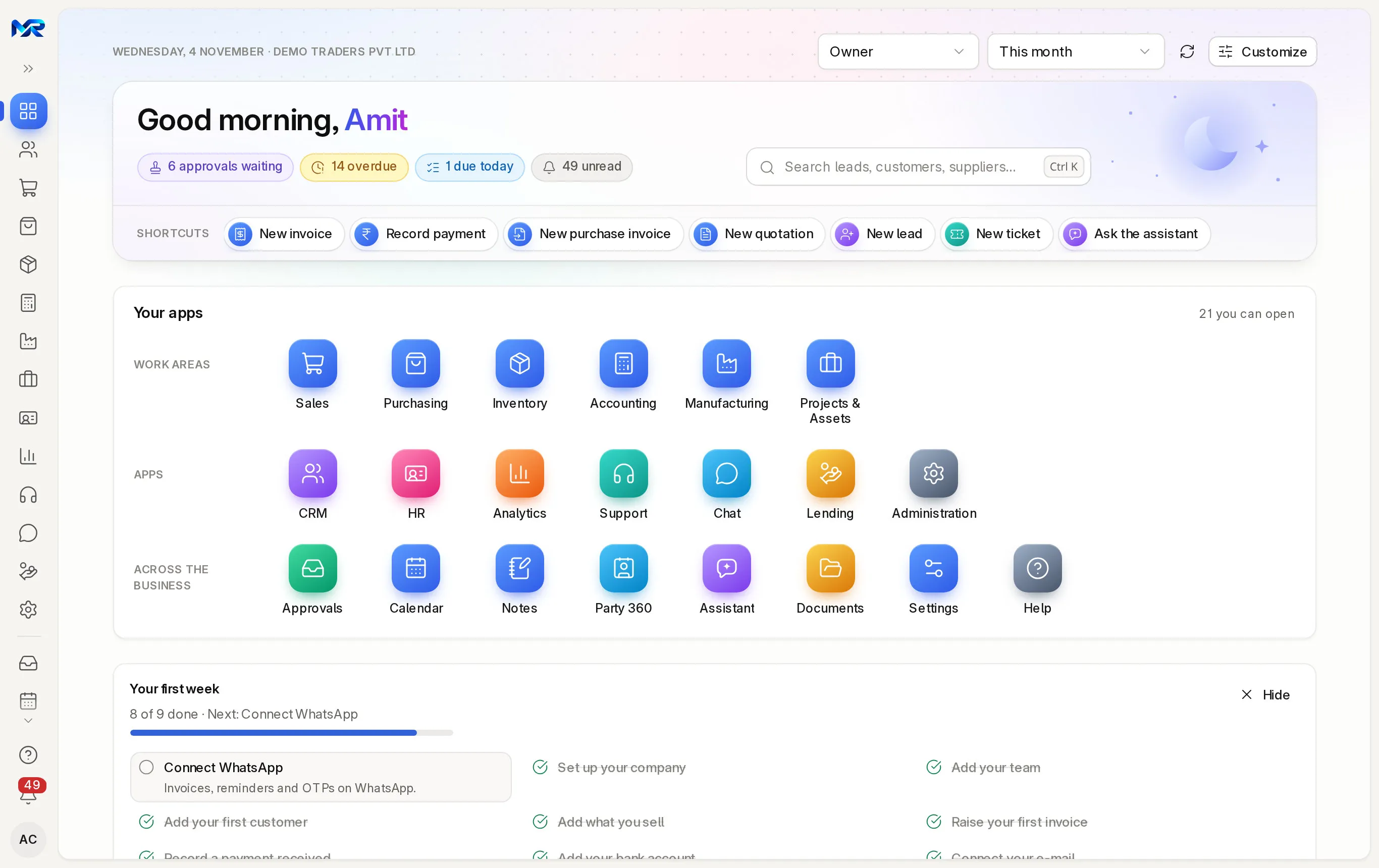
All apps on the rail always brings you back to Home. From top to bottom:
- The top bar. View as picks whose figures Home shows (Owner, Accountant, Sales, HR, Support, Employee …, only the views your role allows) and Period the dates: This month, Last month, This quarter or This financial year. Customize lets you tick and reorder the boxes and choose what opens after sign-in (Home or My work area); Reset to default undoes it.
- The welcome panel. Under your greeting, chips count your approvals, overdue items and unread notifications; press one to open them. The search box finds any screen or record. Shortcuts start everyday jobs such as New invoice or Ask the assistant.
- Your apps. Work areas of the ERP first (Sales, Purchasing, Inventory, Accounting, Manufacturing, Projects & Assets), then Apps, then Across the business: Approvals, Calendar, Notes, Party 360, Assistant, Documents, Settings and Help. A count such as “15 you can open” says how many are yours.
- Your first week. A checklist for a new company; press a step to do it, Hide to remove the box.
- Needs you now. Approvals waiting, with Approve and Reject on each request; Due today and what is overdue; Unread notifications. View all opens the full list.
- Today, in three lines. The things to act on today, from your own figures; worded by AI when your company has the AI Assistant.
- Your week, Key figures, charts and Recent records follow. Cancelled documents never count in any figure.
The rail and the menus
Section titled “The rail and the menus”- The rail is the thin bar on the left: one icon per app you may open, then the shared pages, Help, the bell and your initials. The double arrow at the top opens it with names; the pin keeps it open.
- The app menu appears next to the rail when you open an app. Search all screens at the top finds any screen of the app. Overview opens the app’s home page. The everyday screens follow in groups named after the job: for Sales, Sell, Get paid, Offers and Reports. Hover over an entry for a one-line hint. More in Sales unfolds the screens you open less often.
- Manufacturing and Projects & Assets appear only when those modules are part of your plan.
All screens
Section titled “All screens”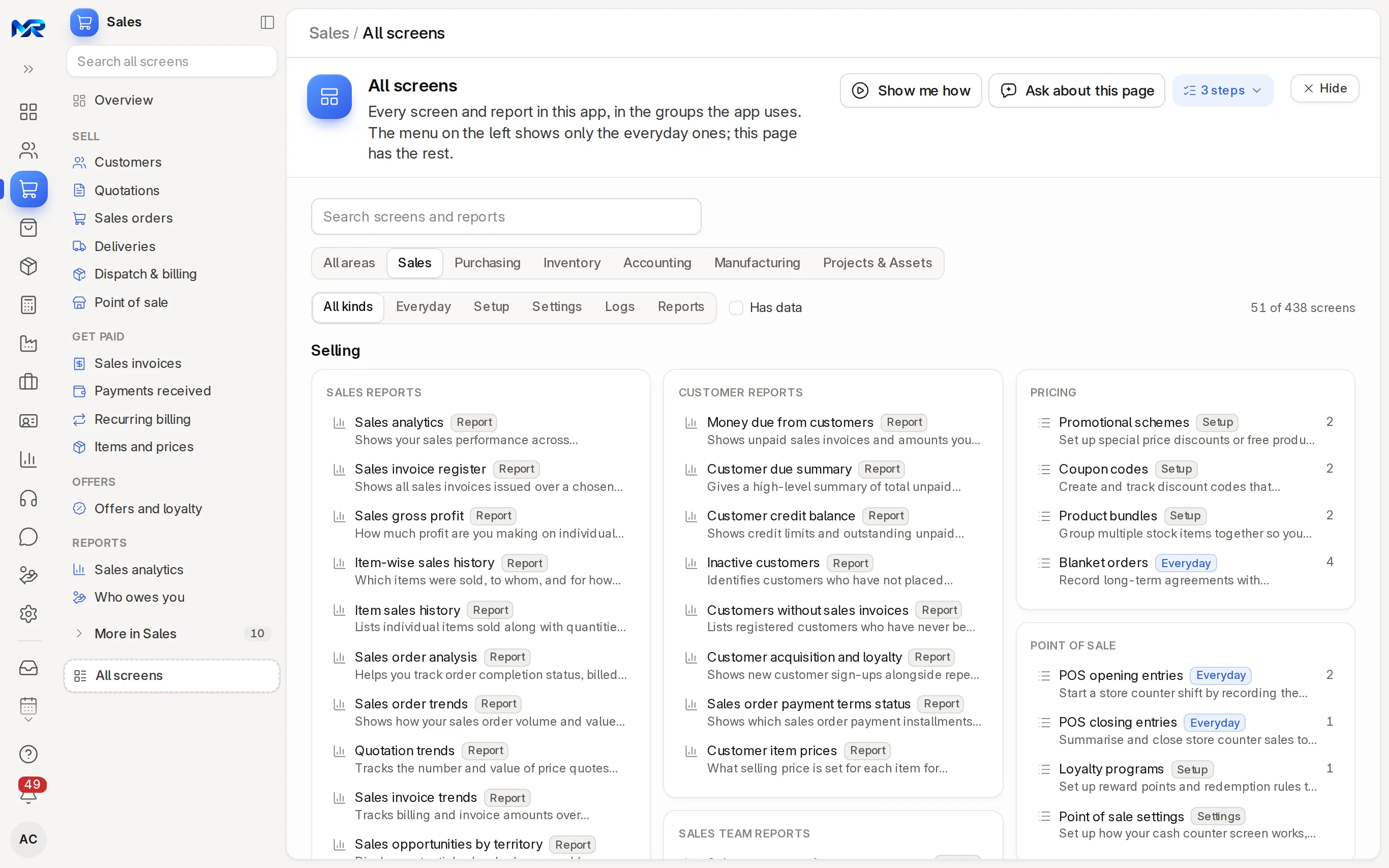
All screens, at the foot of every app menu, lists every screen and report of the app, not only the everyday ones.
- Type part of a name in Search screens and reports.
- In the ERP, pick a work area on the tabs: All areas, Sales, Purchasing and so on.
- Pick a kind: Everyday, Setup, Settings, Logs or Reports.
- Tick Has data to hide screens that are still empty.
- Press a screen to open it. The number on the right of each line is how many records you can see in it, or “Empty”.
Search everything with Ctrl K
Section titled “Search everything with Ctrl K”Press Ctrl K (⌘K on a Mac) on any page, even while typing in a field. Type a few letters.
- Screens lists the lists and reports whose name matches. Type “invoice” and pick Sales invoices to open the list.
- Records lists the customers, invoices, employees, tickets and leads that match by name or number. Only records you may open are offered. With nothing typed, you see your Recent and Often opened records.
- Use the arrow keys and Enter, or click. The microphone searches by voice.
- Type ? for tips. Tab, or a first word such as inv, bill, cust or ticket, searches one kind of record. A GSTIN, PAN, phone number or e-mail finds the party; an amount finds invoices and payments of that value; a document number opens it straight away.
- With the AI Assistant: a question (“how many invoices are overdue?”) goes to the assistant; do: and an instruction (“do: new task to call Kaveri Agencies”) proposes one change that you Confirm; AI matches finds records by meaning (“unpaid bills of hospitals”).
Every page explains itself
Section titled “Every page explains itself”The top of every list, record and report carries a short strip:
- the page’s name and one sentence on what it is for;
- Where this fits: the documents it comes from and leads to (Quotation → Sales order → Delivery → Invoice → Payment), each a link;
- Show me how: a walkthrough on the real screen, step by step;
- Ask about this page: the AI assistant explains the page, its fields and your next step (shown when your company has the AI assistant);
- How this page works: a few more lines about the screen.
Hide folds the strip to a small Page help button. Once you know the product, you can turn page help off in Settings › Preferences.
Notifications and your account
Section titled “Notifications and your account”- The bell carries a red count of what you have not read: assignments, mentions, approvals, reports that are ready and reminders. Press a line to open the record; Mark all as read clears the count; the gear opens your notification preferences; See all notifications opens the full page.
- Your initials open the account menu: Theme: Light, Theme: Dark or Theme: System, Settings (profile, language, time zone, start page, page help, notifications, password, two-step sign-in and the devices you are signed in on), All notifications and Sign out.
On a phone
Section titled “On a phone”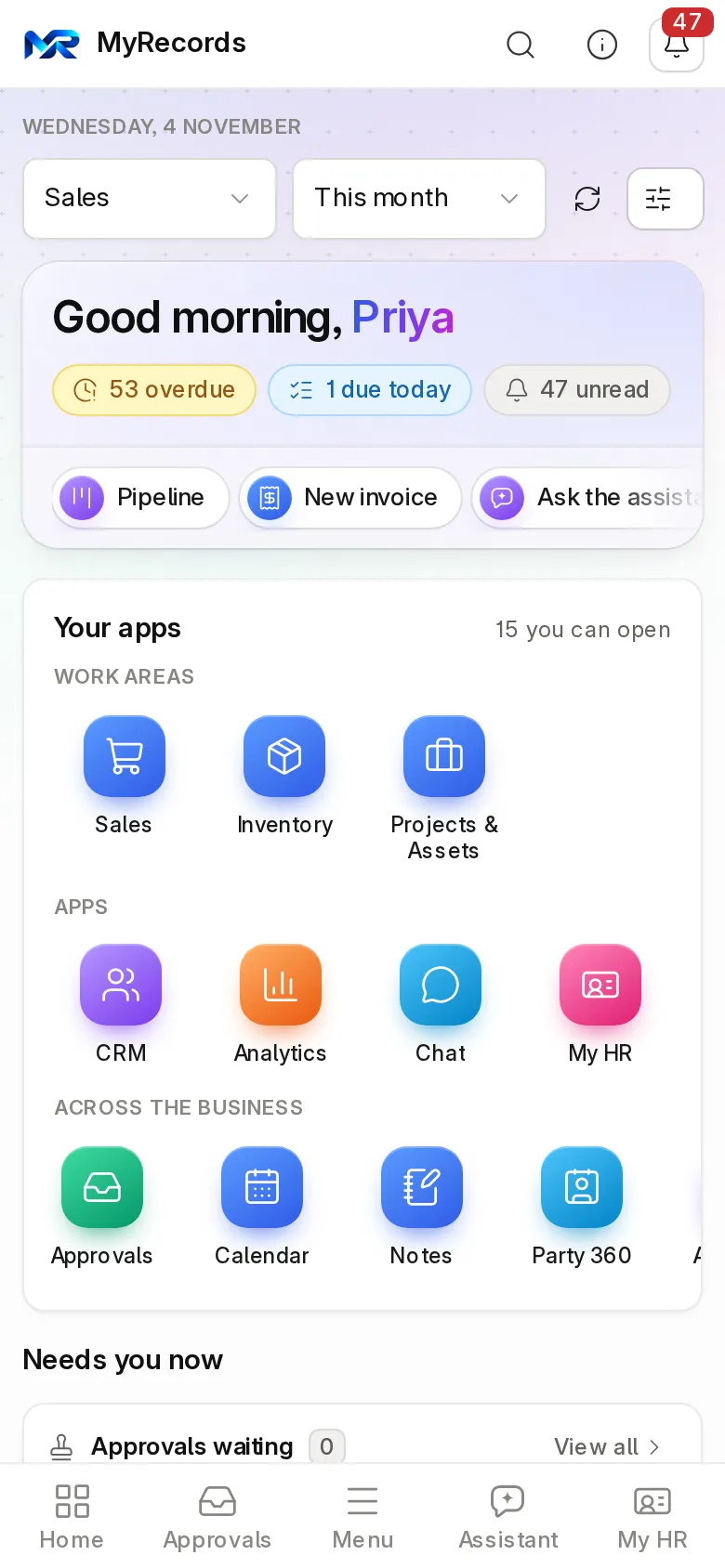
MyRecords works in any phone browser and installs to the home screen. Every everyday page works at phone width.
- The top bar shows the app you are in, Search (the same as Ctrl K), page help and the bell.
- The bottom bar has Home, Approvals, Menu, Assistant (when your company has it), then My HR or Chat. Menu opens every app you may use (inside an app, its menu and All screens first), your recent records, the theme, Settings and Sign out.
- Lists show each record as a card. Records show Back, the action buttons in a row that scrolls sideways, and the tabs.
- Check in, Apply for leave and New expense claim in My HR are built for the phone first. Check-ins also work without a connection and are sent when you are back online.
Dark theme
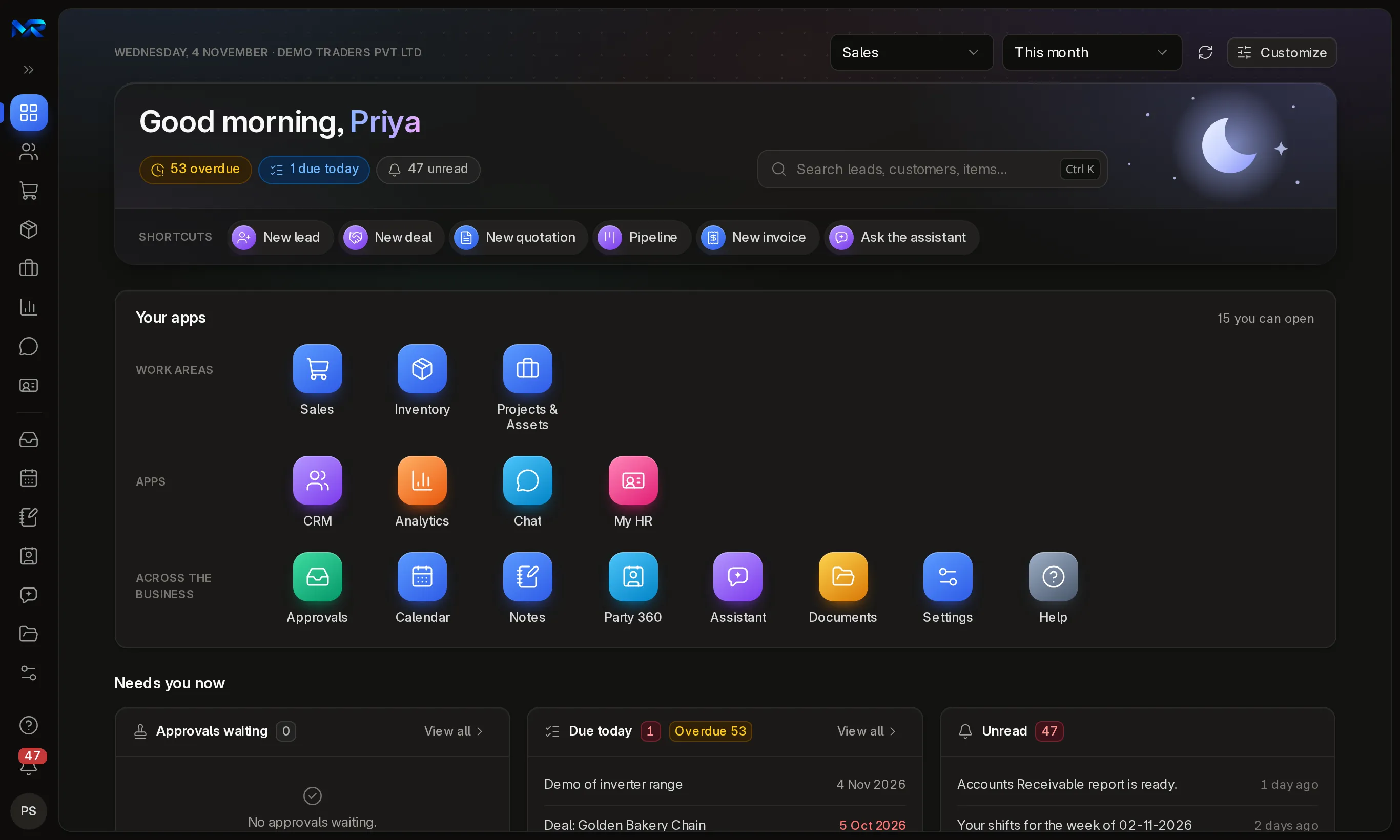
Section titled “Dark theme”Pick Theme: Dark in the account menu, or Theme: System to follow your phone or computer. Every screen, chart and status colour has a dark version.
The Help page
Section titled “The Help page”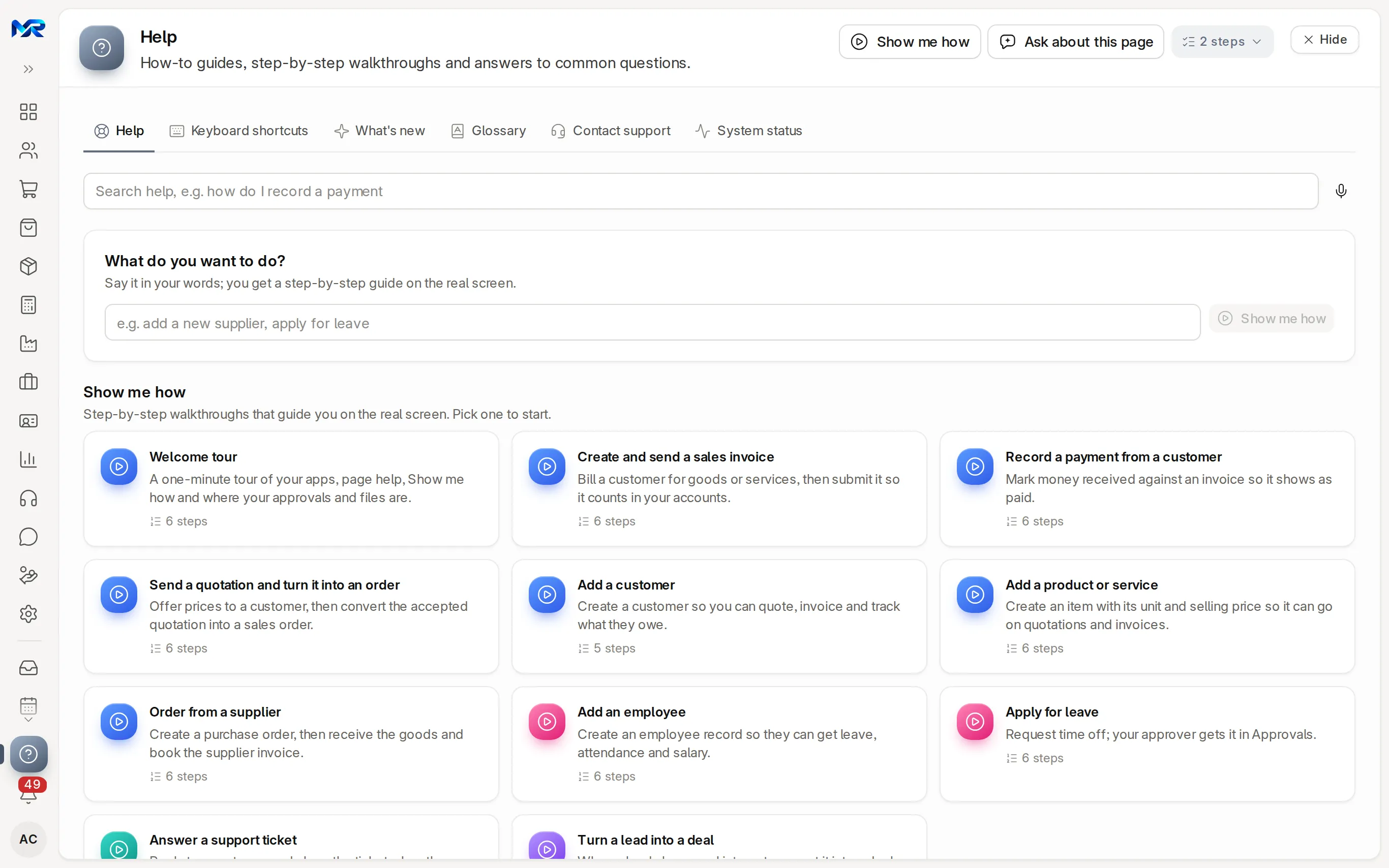
Help, near the foot of the rail, collects the guides for the screen you are on and the walkthroughs for the top jobs: create and send a sales invoice, record a payment, send a quotation and turn it into an order, add a customer, add a product, order from a supplier, add an employee, apply for leave, answer a support ticket and turn a lead into a deal (only those for apps you can open). What do you want to do? takes a task in your own words. The other tabs are Keyboard shortcuts, What’s new, Glossary, Contact support and, for administrators, System status. Everyone has Help, whatever apps they use.
Next: Lists, forms and reports explains the controls every screen shares.
Still stuck?
Ask the team that set it up.
In MyRecords, Show me how walks you through any page. For your plan or a change, write to us.
- Updates and fixes included
- Changes whenever you want