
Projects & Assets
Projects & Assets brings three kinds of work together: projects, fixed assets and after-sales service.
Projects cover tasks, hours, costs and billing. Assets cover the register of what the business owns, depreciation, moves and upkeep. Service covers visits, customer issues and warranty claims. Each part appears when its module (Projects and timesheets, Assets, Maintenance visits, Warranty and issues) is part of your plan.
The Projects & Assets home
Section titled “The Projects & Assets home”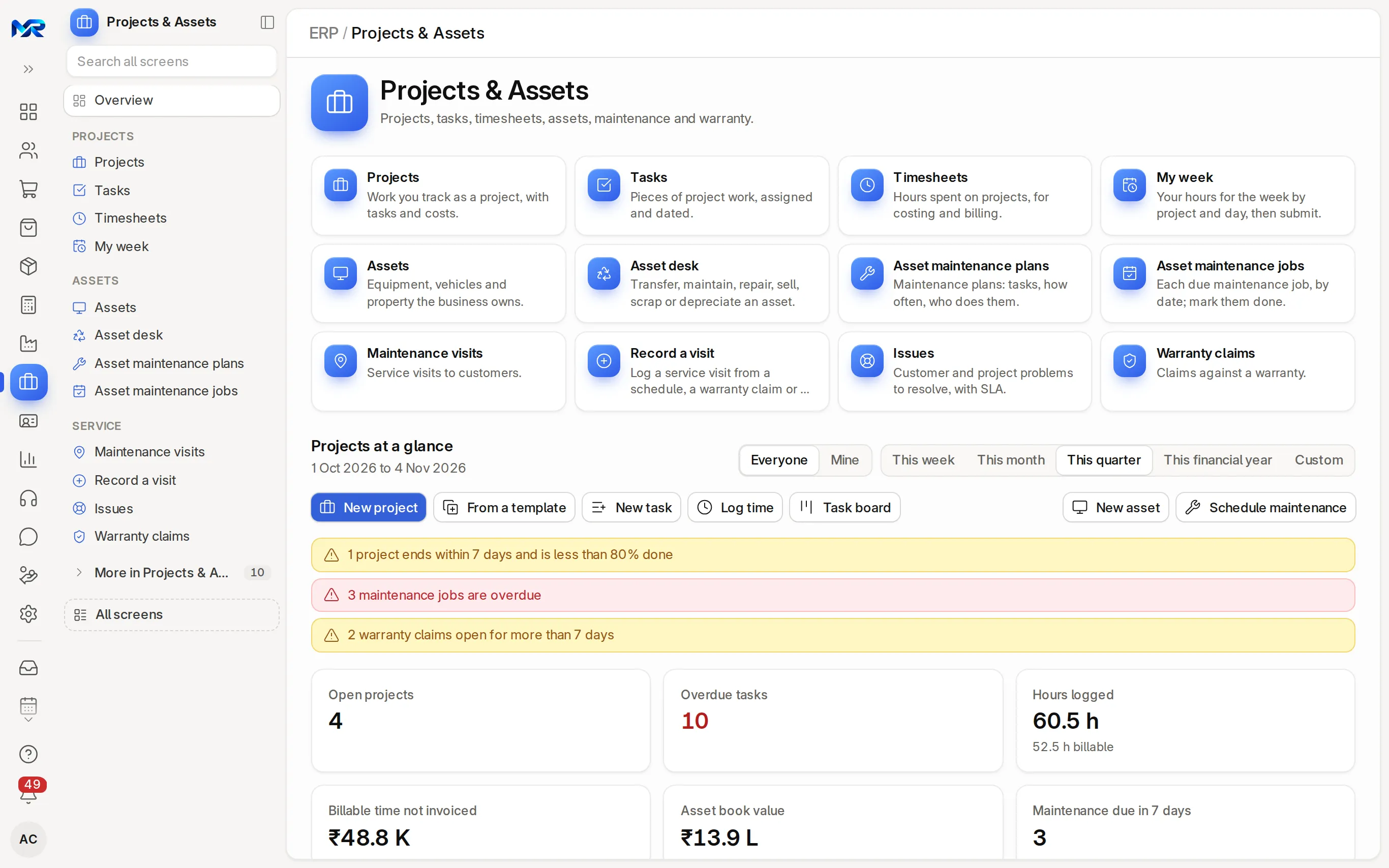
- Everyone or Mine switches between all projects and your own; the period tabs run from This week to This financial year or Custom.
- Action buttons: New project, From a template (start with your standard tasks), New task, Log time, Task board, New asset and Schedule maintenance.
- Key figures: open projects, overdue tasks, hours logged (and the billable part), billable time not invoiced, asset book value and maintenance due in 7 days.
- At risk ranks open projects by how likely they are to slip: late, time used ahead of progress, over budget, overdue tasks, or a finish date the last four weeks’ pace will miss. Brief me has the AI assistant explain the list; tick E-mail me this every Monday to get it weekly.
- To do: my tasks due this week, projects behind schedule, time not billed after 30 days, timesheets to submit and maintenance overdue.
The everyday menu
Section titled “The everyday menu”| Group | Entry | What it is for |
|---|---|---|
| Projects | Projects | Work you track as a project, with tasks and costs |
| Tasks | Pieces of project work, assigned and dated | |
| Timesheets | Hours spent on projects, for costing and billing | |
| My week | Your hours for the week by project and day, then submit | |
| Assets | Assets | Equipment, vehicles and property the business owns |
| Asset desk | Transfer, maintain, repair, sell, scrap or depreciate an asset | |
| Asset maintenance plans | Maintenance plans: tasks, how often, who does them | |
| Asset maintenance jobs | Each due maintenance job, by date; mark them done | |
| Service | Maintenance visits | Service visits to customers |
| Record a visit | Log a service visit from a schedule, a warranty claim or a call | |
| Issues | Customer and project problems to resolve, with SLA (the Support app is the fuller tool) | |
| Warranty claims | Claims against a warranty |
More in Projects & Assets holds the rest: Add an existing asset, Income-tax depreciation, asset categories, asset repairs, maintenance teams, maintenance schedules, Maintenance visits map, project templates, activity types and project updates.
Run a project and bill the hours
Section titled “Run a project and bill the hours”- Press New project (or From a template). Enter the project name, the customer, the expected start and end dates and the estimated cost. Save.
- Add the work: Add task on the project, or New task on the home. Each task has a subject, dates, a priority, the person it is assigned to and, if needed, the tasks it depends on.
- Log the hours. Each person fills My week (hours per project, task and day; Copy last week starts from last week’s rows; Save keeps a draft, Save and submit sends it), or uses Log time for a single entry. Mark client work as billable; the rate comes from the activity cost.
- Bill: press Invoice unbilled time on the project, or Create sales invoice on a submitted timesheet. The billable hours become the invoice lines.
- Watch the project’s Summary tab: progress, tasks done, hours, cost against budget, billing and gross margin. Costing & billing and Health & update go deeper.
How to check it worked
Section titled “How to check it worked”Billable time not invoiced on the home falls by the hours you billed, and the project’s Summary shows the invoice under billing.
Look after fixed assets
Section titled “Look after fixed assets”- Set up once: an asset category (depreciation method, useful life and accounts) and an item marked as a fixed asset in that category.
- Buy it: a purchase receipt or purchase invoice for the asset item creates the asset as a draft with its cost. An asset you owned before you started with MyRecords goes in through Add an existing asset, with the depreciation your old books already charged.
- Put it to use: open the asset, check its location, the date it is available for use and its depreciation (method, number of depreciations, frequency). Submit it. The depreciation schedule is made and depreciation is posted on the schedule dates.
- Day to day: the asset page has Transfer and Maintain at the top and more under More; its tabs show Depreciation, Movements & history, Maintenance & repairs and Value & insurance.
- Hand it over: Transfer the asset to an employee, then Send handover on WhatsApp from the movement. The employee confirms receipt on Confirm a handover, and it goes into the asset’s history.
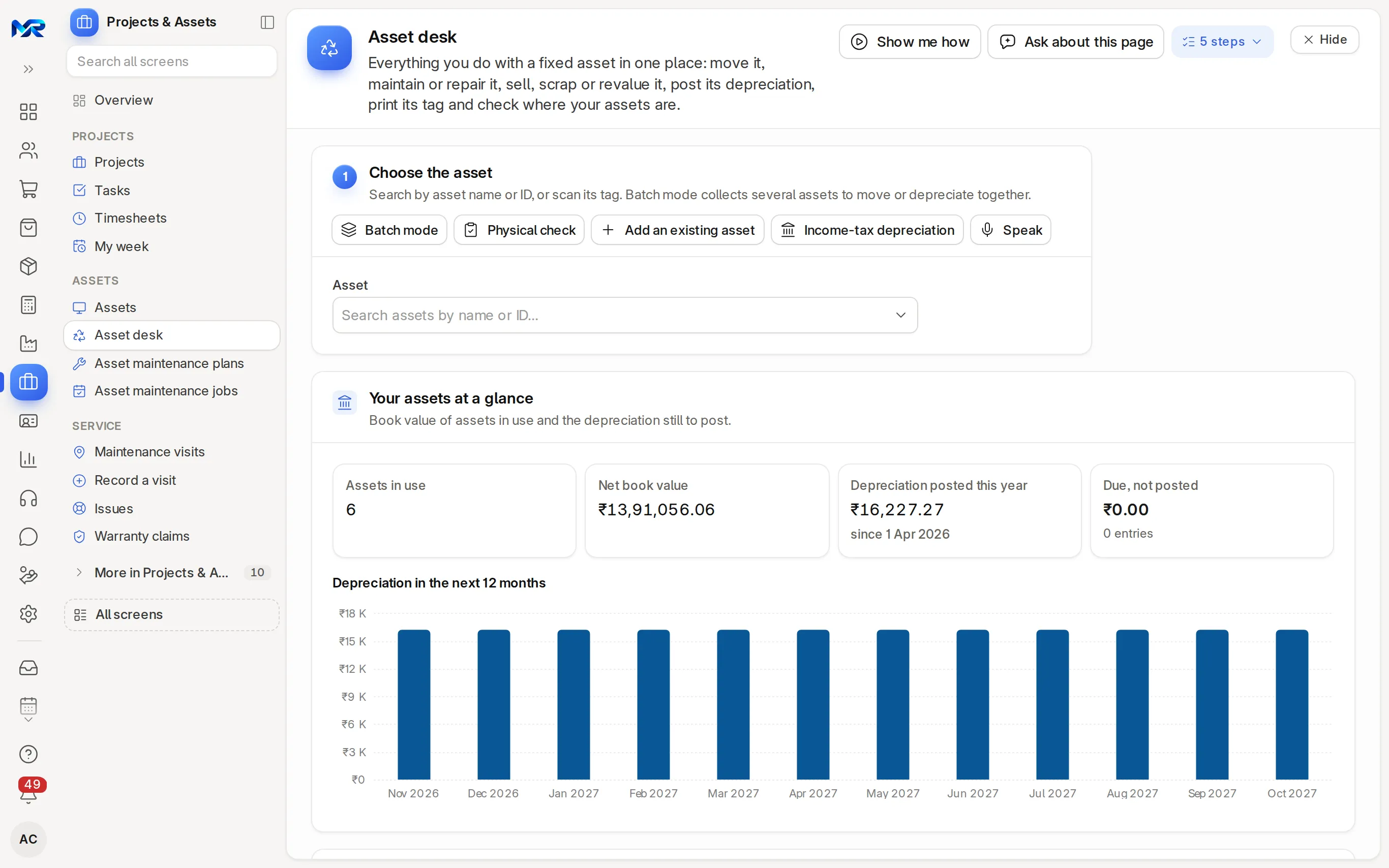
The Asset desk does every asset job in one place. Search for the asset or scan its tag, then press a tile: Transfer, Maintain, Repair, Split, Sell, Revalue, Post due depreciation, Depreciation entry, Capitalize (build it from items and services), Scrap or Restore. A greyed-out tile says why it is not possible. Batch mode moves, depreciates or tags several assets at once; Physical check ticks off the assets at a location, and keeps working without a connection.
Income-tax depreciation works out depreciation the way income tax does (blocks of assets at written-down value rates) and keeps it apart from your company books. Download the CA pack gives your accountant the working.
Service visits and warranty
Section titled “Service visits and warranty”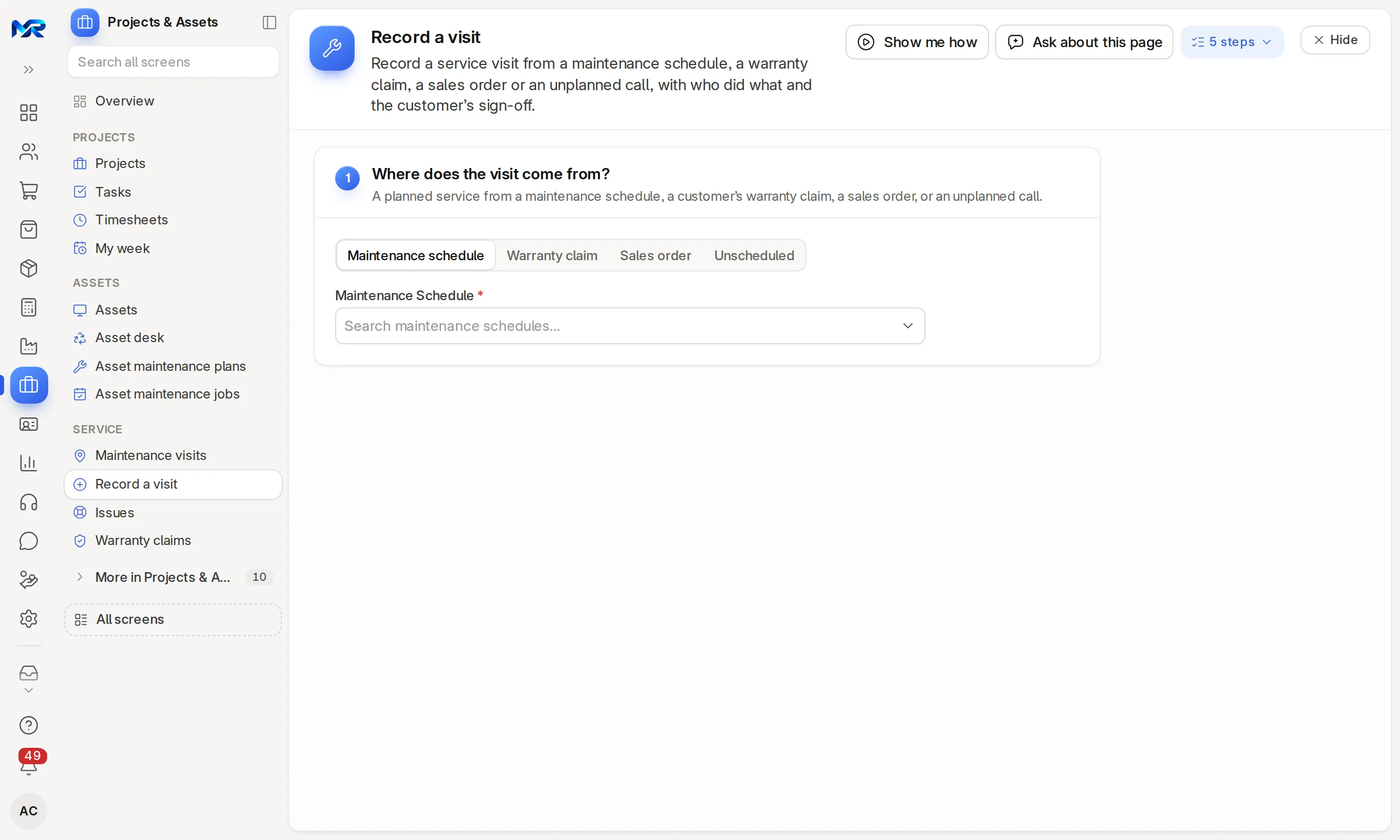
- A maintenance schedule plans the visits for a customer’s items.
- After a visit, open Record a visit and choose where it comes from: a maintenance schedule, a warranty claim, a sales order or an unplanned call.
- For each item, note who did the work and what was done. Add the customer’s feedback and a photo of their signature or the finished work.
- Press Save and submit (or Save as draft to finish later). The schedule line is marked done, or the warranty claim moves on.
On a phone, a visit recorded without a connection is kept on the phone and saved when you are back online. Issues hold customer and project problems with a service level. Warranty claims record claims against a warranty and check the unit’s warranty expiry. Maintenance visits map shows each visit at the place it was recorded on the technician’s phone.
AI in Projects & Assets
Section titled “AI in Projects & Assets”These need the AI Assistant add-on (and an AI key on your own server), and AI switched on for your role:
- Brief me explains the projects at risk.
- On the Asset desk, What should I do first? (AI) suggests next steps and Photo check (AI) checks that a photo shows the asset. You can also say what to do (“move this asset”).
- On Record a visit, Read it from a label photo (AI) reads a serial number.
- On an issue, Draft a reply (AI) and Suggest type and priority (AI) help you answer it.
Who sees this
Section titled “Who sees this”- Projects User and Projects Manager run projects, tasks and timesheets. Everyone with a timesheet fills My week.
- The Accounts roles look after assets and depreciation.
- Maintenance User and Maintenance Manager handle schedules, visits and warranty claims.
Still stuck?
Ask the team that set it up.
In MyRecords, Show me how walks you through any page. For your plan or a change, write to us.
- Updates and fixes included
- Changes whenever you want