
Sales
Sales is where you quote, sell, deliver and get paid. Sales people own quotations, orders and deliveries; accountants also see invoices and payments here. Everyone sees only the buttons for the jobs they may do.
The Sales home
Section titled “The Sales home”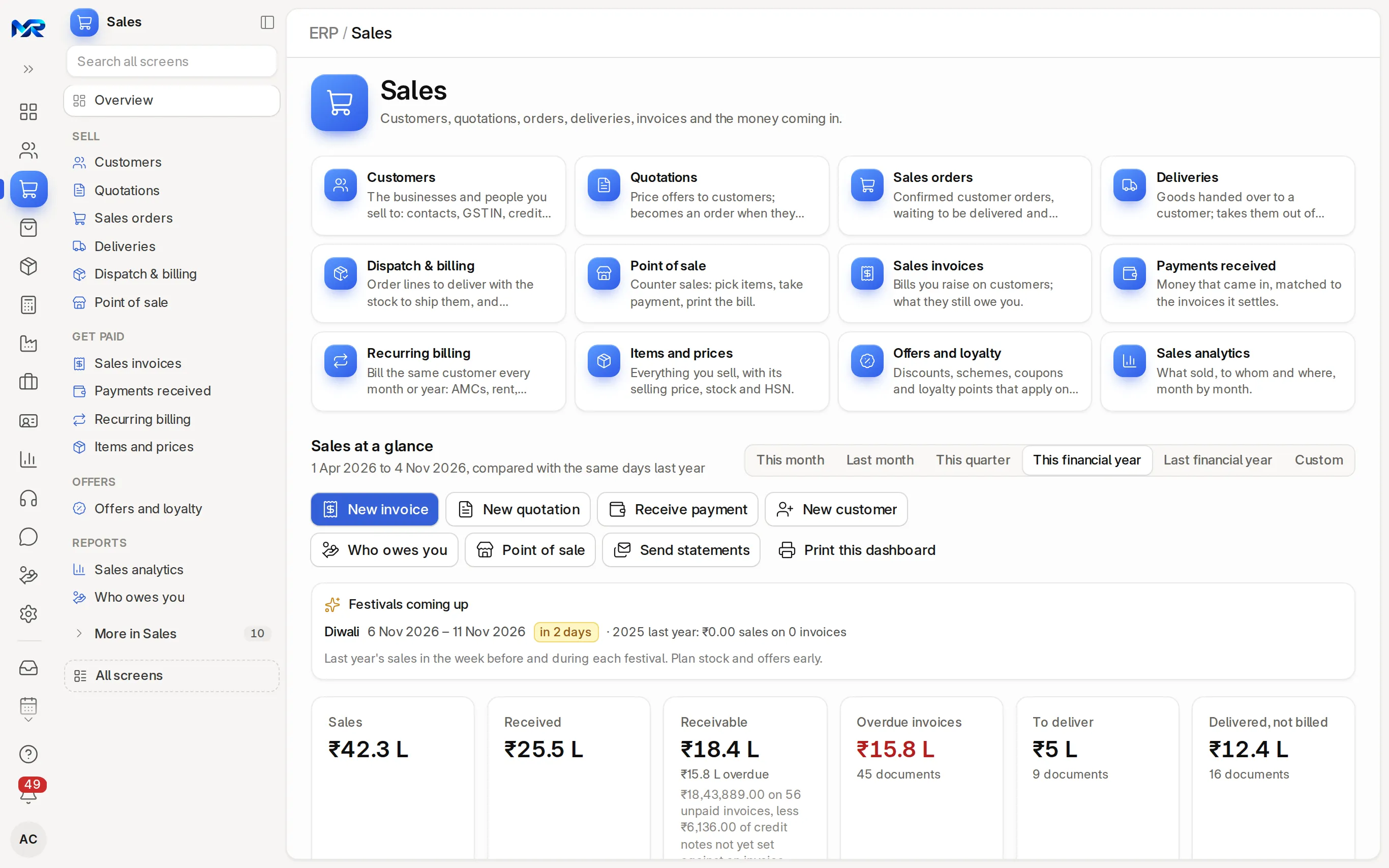
The home answers “what did we sell, who owes us, and what needs doing today?”.
- Sales at a glance: pick the period (This month, Last month, This quarter, This financial year, Last financial year or Custom), compared with the same days last year. Every figure, chart and list below follows it.
- Action buttons: New invoice, New quotation, Receive payment, New customer, Who owes you, Point of sale, Send statements and Print this dashboard.
- Festivals coming up: the next festival and what you sold around it last year, to plan stock and offers early.
- Key figures: sales, received, receivable (with the overdue part), overdue invoices, to deliver, delivered but not billed, open quotations, credit notes, average order, gross margin and what customers should pay in the next 30 days. Click a figure to see the records behind it.
- Suggested today: the customers worth calling, such as invoices long overdue, each with a WhatsApp reminder button.
- Work lists: overdue invoices, quotations expiring this week, orders to deliver this week, draft invoices, advances not yet matched, deliveries not yet billed.
- How work flows: Quotations → Sales orders → Deliveries → Sales invoices → Payments received. Each step shows how many records sit there; click it to open them.
- AI brief: Write the brief sums up the figures in a few lines, and Ask answers your own question (“who owes the most?”). This needs the AI assistant.
The everyday menu
Section titled “The everyday menu”| Entry | What it is for |
|---|---|
| Customers | The businesses and people you sell to: GSTIN, address, credit limit, payment terms, price list |
| Quotations | Prices you offer before an order is confirmed; status Open, Ordered, Lost or Expired |
| Sales orders | Confirmed orders to deliver and bill, with delivery dates per line |
| Deliveries | Goods sent to a customer; stock leaves the warehouse |
| Dispatch & billing | Many orders at once: To dispatch makes delivery notes for the lines you tick, To bill invoices for the deliveries you tick |
| Point of sale | Counter sales (see Point of sale) |
| Sales invoices | Bills to customers: what they owe you |
| Payments received | Money in, with what is not yet matched to an invoice |
| Recurring billing | Invoices raised every cycle for AMCs, rent and retainers |
| Items and prices | What you sell, with price, stock and HSN/SAC; Change prices in bulk |
| Offers and loyalty | Discounts, slab schemes, coupons and loyalty points |
| Sales analytics | What sold, to whom and where, month by month |
| Who owes you | Unpaid invoices by customer and how overdue |
The menu groups them under Sell, Get paid, Offers and Reports. More in Sales holds price lists, item prices, coupon codes, loyalty programs, sales partners, Contracts and partners, blanket orders, POS invoices, installation notes and Payment speed and statements.
Sell, step by step
Section titled “Sell, step by step”Each step starts from the one before, so the lines, prices and links carry over and nothing is typed twice.
- Add the customer. Press New customer on the home, or Customers › New. Fill Customer Name (exactly as it must print on invoices) and Customer Type (Company, Individual or Partnership), then Customer Group and Territory. Save. On the Details tab, add the 15-character GSTIN under Tax (GST invoices need it; the PAN goes in Tax ID), the address and contact, the price list and the payment terms.
- Send a quotation. Press New quotation. Pick the customer, add the items and quantities (the rate comes from the price list and can be changed), check Valid Till and press Save. The Quote check tab compares each line with the list price, the rate this customer was last billed and the margin: fix a price there before the customer sees it. Press Submit, then Print or Share. Set follow-up reminds you to call back.
- Make the sales order. When the customer agrees, open the quotation and press Convert to sales order on its Quote check tab (or Create › Sales Order). Set the Delivery Date and the warehouse the goods leave from, then Save and Submit. The quotation now shows Ordered.
- Deliver. Open the order. Its Fulfilment tab shows each line ordered, delivered, still to deliver and in stock. Press Deliver now (or Create › Delivery Note), check the quantities and warehouse, then Save and Submit. The stock goes out.
- Bill the customer. Open the delivery note and press Create invoice on its Transport & billing tab (or Create › Sales Invoice). For a service with nothing to deliver, press Create invoice on the order’s Fulfilment tab. Check the dates, the tax rows and the Grand Total, then Save and Submit. The books are posted and the invoice shows its Balance due and due date.
- Record the payment. When the money arrives, press Record payment on the invoice. A small window asks for the Amount (the balance is filled in; a part payment is fine), Paid by (cash, bank transfer, UPI, cheque), the Date and the Reference (UTR or cheque number). Confirm. The invoice turns Paid, or Partly Paid with the balance still due.
How to check it worked
Section titled “How to check it worked”- Who owes you shows the customer’s balance at zero, or the unpaid part.
- The order shows how much is delivered and billed; the quotation shows Ordered.
- Accounting › General ledger, filtered by the customer, shows the invoice and the payment.
GST on your invoices
Section titled “GST on your invoices”MyRecords picks the GST type from the place of supply:
- Customer in your own state → CGST + SGST. Another state, an SEZ or overseas → IGST.
- The place of supply comes from the invoice, else the customer’s GSTIN, else the billing or shipping address. The same rule applies to quotations, orders, deliveries and POS bills.
- On a draft, a tax template of the wrong kind switches by itself to the matching one at the same rate, with a short notice such as “IGST applied: the place of supply is outside your state.”
- If you pick a template of the wrong kind, or type tax rows by hand that do not match, the save is refused with a plain message. If the state is not known, nothing is changed.
- The taxes table’s Total row adds up only the tax amounts.
- The invoice shows the Customer GSTIN; the PAN appears separately as Customer PAN / tax ID.
The default print is a GST tax invoice: your GSTIN and the customer’s (labelled GSTIN), HSN codes, the place of supply, the tax split and the rounded total. A return prints as a credit note against its invoice. Print also offers “Shop receipt, 80 mm printer” and “Simple invoice, without GST details”. E-mail and WhatsApp shares use the default layout.
For e-invoices, e-way bills and the GST returns, see Accounting.
Send the invoice and get paid online
Section titled “Send the invoice and get paid online”- Share on a submitted invoice sends it by e-mail (PDF attached) or WhatsApp, or copies a link. Print › Download PDF gives the file itself.
- Pay by UPI: the invoice’s Pay by UPI tab shows a payment QR with the amount, once your business UPI ID is saved on the company.
- Collect payment › Create payment link sends a link the customer can pay online; when they pay, a draft payment is made for you to check. It is available once your Razorpay, Cashfree or Stripe account is connected.
- A customer’s Statement tab lists every invoice and payment with the running balance, for any dates.
Returns, cancel and amend
Section titled “Returns, cancel and amend”- The customer returns goods. Open the original invoice and press Create › Credit Note. The items come in with negative quantities: remove the rows that are not coming back, tick Update Stock if the goods go back into stock, then Save and Submit. The original shows Credit Note Issued. To refund the money, press Create › Payment on the credit note.
- A mistake on a submitted invoice. Press Cancel (the ledger entries are reversed), then Amend to make a corrected copy linked to the original. Do not raise a second invoice for the same delivery.
Chase what customers owe
Section titled “Chase what customers owe”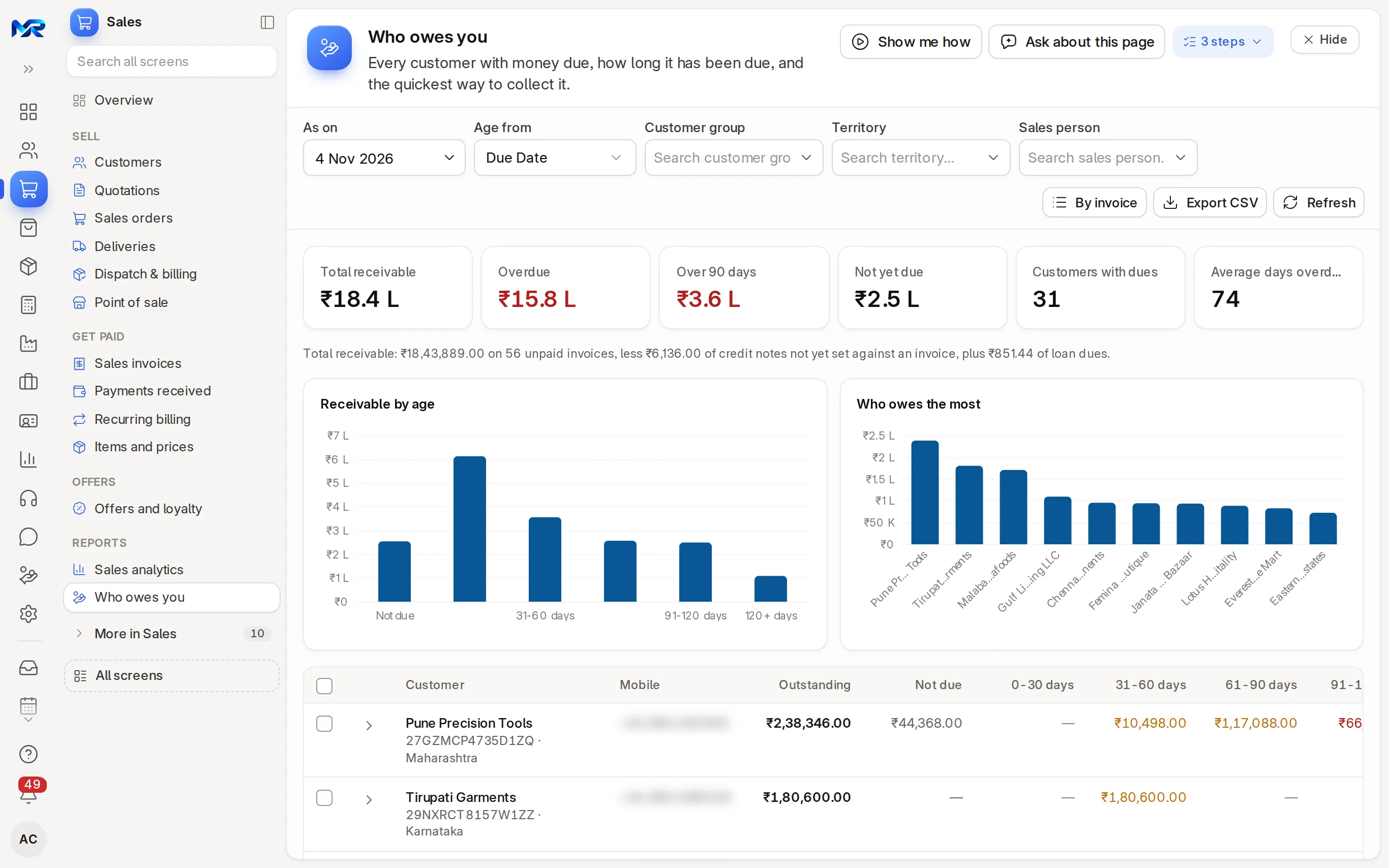
- Open Sales › Who owes you. Each customer’s dues are split by days overdue: not due, 0–30, 31–60, 61–90, 91–120 and over 120 days. The total equals the Debtors account in the books. By invoice lists the unpaid invoices one by one.
- Open an overdue invoice and press Send payment reminder. A window shows exactly what will go out: who it goes to (e-mail and mobile), how to send it, the subject, the text (for example “₹4,160 was due on 2 Oct 2026 (30 days overdue)”) and the attachment, the invoice PDF in the GST layout.
- Pick how to send it:
- E-mail goes at once and is noted on the invoice’s timeline.
- WhatsApp from your phone opens WhatsApp with the message ready, and you press send.
- WhatsApp, sent from the business number with a link to the PDF, is available once your WhatsApp Business account is connected.
- Press the button, which names the action: “Send e-mail to …” or “Open WhatsApp to send”.
The link in the message is short, opens only that invoice and expires after 30 days. Reminders go only for overdue invoices that are not in dispute, and only people allowed to send e-mail see the button. Draft reminder letter is a separate action that prepares a formal letter and sends nothing; those letters are listed under Reminder letters.
To send statements of account to many customers, press Send statements on the Sales home and tick the customers, or download them all as one PDF.
Sales analytics
Section titled “Sales analytics”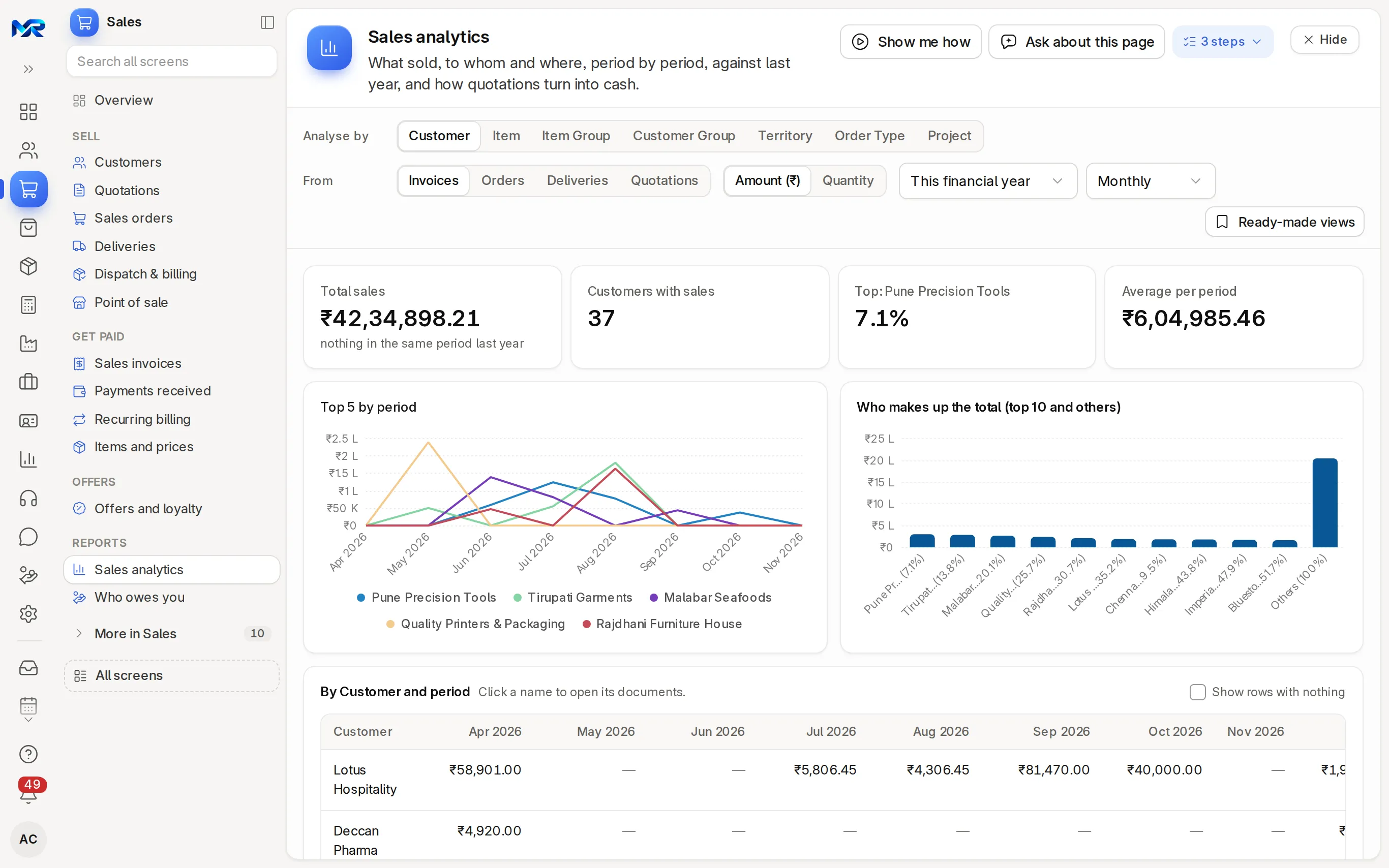
Sales analytics shows sales by customer, item, item group, customer group, territory, order type or project, from invoices, orders, deliveries or quotations, as an amount or a quantity, month by month or quarter by quarter. Related reports open from the same page: sales by salesperson, gross profit, new and repeat customers, customers who stopped buying and partner commission. Payment speed and statements (More in Sales) shows how many days each customer takes to pay, and e-mails statements of account on a schedule.
With the AI Assistant
Section titled “With the AI Assistant”Each of these needs the AI Assistant add-on; without it, the manual way stays on the page.
- AI brief on the Sales home sums up the figures; Ask answers your own question.
- Quote or order from their message, on a customer’s Prices tab: paste their WhatsApp or e-mail, or a photo of their list or purchase order. The lines are matched to your items (their own item codes first); check them and press Make a draft quotation or Make a draft sales order.
- A quotation’s follow-up message, an order’s status in words for the customer, an item description and a suggested HSN code (only codes from the official HSN/SAC list) can be drafted for you to check.
- A photo of a signed delivery challan fills in the proof of delivery.
Who sees this
Section titled “Who sees this”- Sales User and Sales Manager open customers, quotations, sales orders, deliveries, items and prices, and the sales reports. Sales people see stock read-only.
- A Sales User can view sales invoices. A Sales Manager (the Sales access pack) also raises and submits them, sees Payments received and Who owes you, and sends reminders.
- Recording payments, cancelling and the general ledger stay with the Accounts roles. An accountant sees invoices and payments in Sales and in Accounting.
- Point of sale is listed only for people who may read a till setup: the Accounts roles and the Sales Manager by default.
Still stuck?
Ask the team that set it up.
In MyRecords, Show me how walks you through any page. For your plan or a change, write to us.
- Updates and fixes included
- Changes whenever you want