
Lending
Lending runs loans to customers or to employees: enquiries, applications and their appraisal, the loans themselves, money paid out (disbursements), money coming back (repayments), collections and statements. It appears when Lending is part of your plan; Enquiries and Applications come with the Loan applications module.
The Lending home
Section titled “The Lending home”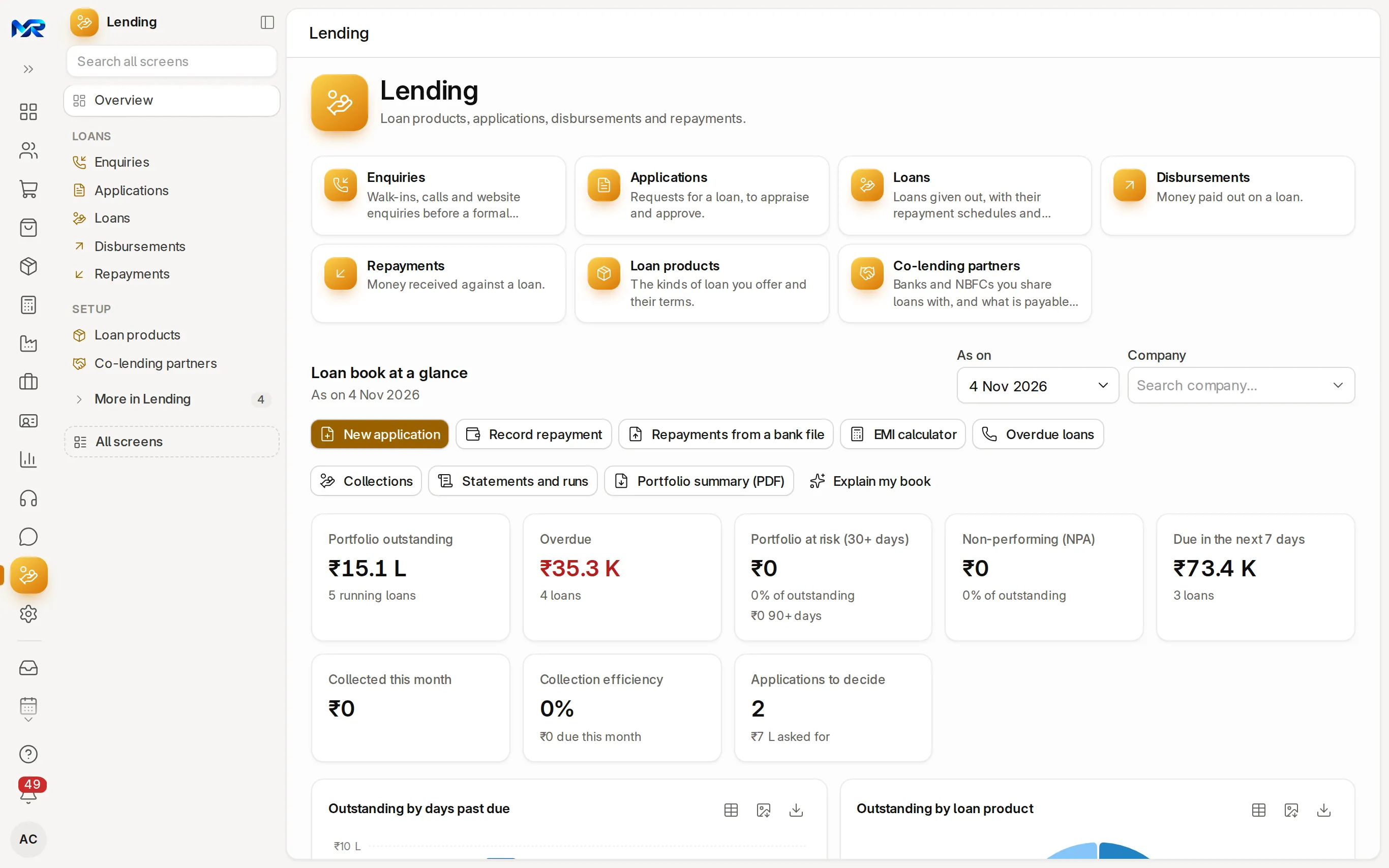
- Loan book at a glance is worked out As on a date (today by default), for one company or all.
- Buttons: New application, Record repayment, Repayments from a bank file (many repayments from your bank statement at once), EMI calculator, Overdue loans, Collections, Statements and runs, Portfolio summary (PDF) and Explain my book (the AI assistant describes the book in plain words).
- Key figures: portfolio outstanding, overdue, portfolio at risk (30+ days), non-performing (NPA), due in the next 7 days, collected this month, collection efficiency and applications to decide.
- Charts: outstanding by days past due (Current, SMA-0, SMA-1, SMA-2, NPA), by loan product, paid out and collected by month, instalments due in the next 8 weeks, and applications in the last 12 months. Click a bar to see the loans behind it.
- Work lists: Overdue: call and collect, Due in the next 7 days, Sanctioned, not yet paid out, Closure requested and Applications to decide, with a call, WhatsApp and Record payment button on each loan.
- Daily jobs: the nightly runs that book interest, raise dues and count days past due, with the date each last ran.
The everyday menu
Section titled “The everyday menu”| Group | Entry | What it is for |
|---|---|---|
| Loans | Enquiries | Walk-ins, calls and website enquiries before a formal application |
| Applications | Requests for a loan, to appraise and approve | |
| Loans | Loans given out, with their repayment schedules and balances | |
| Disbursements | Money paid out on a loan | |
| Repayments | Money received against a loan | |
| Setup | Loan products | The kinds of loan you offer and their terms |
| Co-lending partners | Banks and NBFCs you share loans with, and what is payable to them |
More in Lending holds loan securities, restructures, write-offs and refunds.
Set up a loan product
Section titled “Set up a loan product”Open Lending › Loan products › New. Fill the product code and name, Rate of Interest (%) Yearly, the company, the repayment method and the loan, interest and penalty accounts. Fill accounts from the chart fills the accounts for you. Save.
Give a loan, step by step
Section titled “Give a loan, step by step”- Apply. Applications › New (or New application on the home). Fill the Applicant Type (Employee or Customer), the Applicant, the Loan Product, the Loan Amount, the Repayment Method (repay over a number of periods, or a fixed amount per period) and the Repayment Period in Months. The total payable and the interest are worked out. Save and Submit.
- Approve and sanction. On the application press Approve (or Reject with a reason). The figures under the title show the amount asked for, the instalment (EMI), the total interest and the total to repay. Sanction letter (PDF) prints the letter for the borrower. On the KFS & letters tab, the Key Facts Statement prints in English, with an AI translation under each line in one of 12 Indian languages (Hindi, Bengali, Marathi, Telugu, Tamil, Gujarati, Kannada, Malayalam, Odia, Punjabi, Assamese or Urdu) when the AI Assistant is set up.
- Make the loan. Press Make the loan (or Create › Loan), check it, add the repayment start date and Submit. It is Sanctioned.
- Pay it out. Press Pay out on the loan (or Create › Disbursement): the date, how it was paid, the bank account and the reference (UTR or cheque number). The loan is Disbursed and its repayment schedule is made.
- Collect each instalment. Press Record repayment on the loan’s Account tab, on the home, or on a work-list row. Fill Received on, Amount received, Paid by and the reference, and choose What is it for: an instalment, a pre-payment (part of the principal early), an advance for coming instalments, or closing the loan (foreclosure).
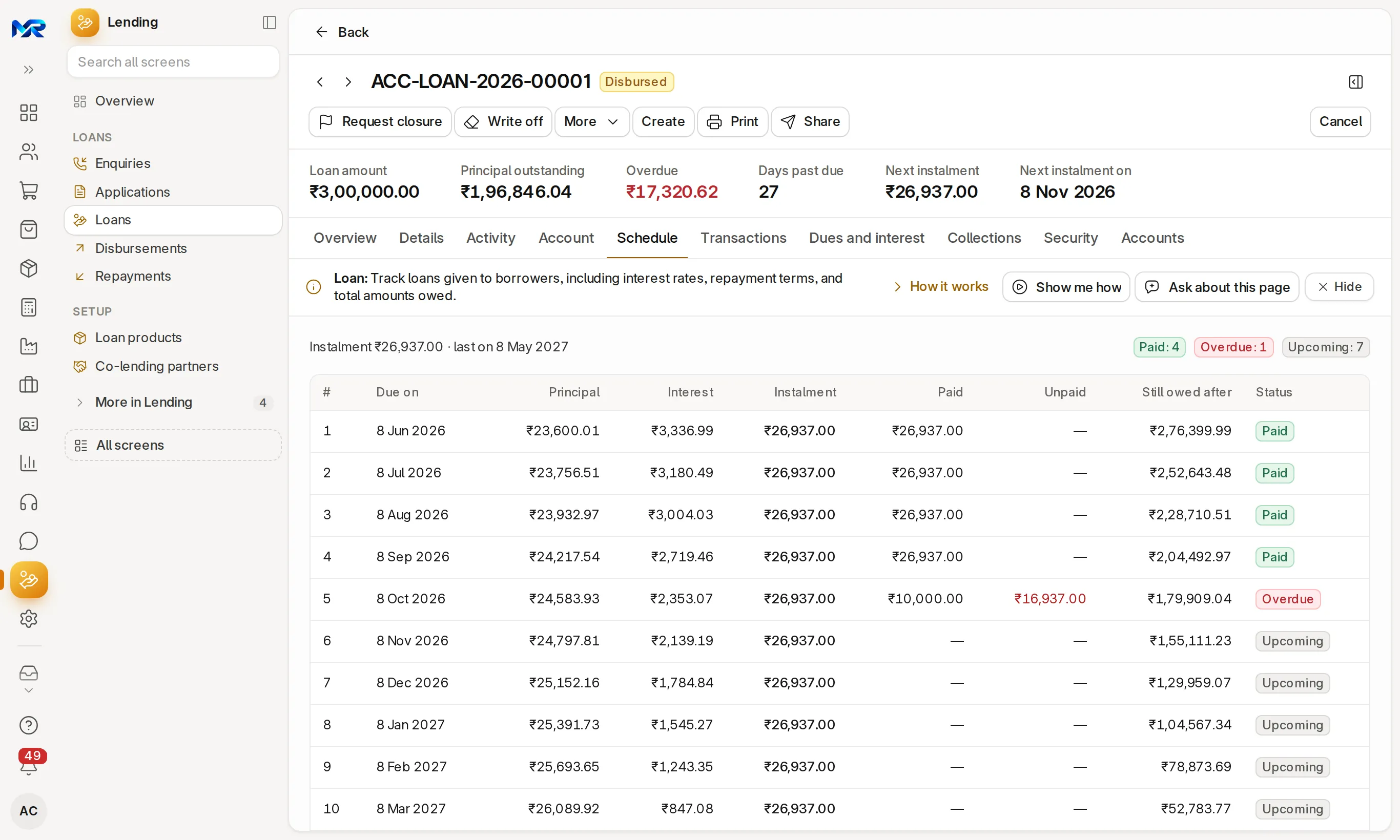
The loan’s Schedule tab shows every instalment with its due date, principal, interest and the balance after it. Transactions and Dues and interest follow the money; interest is worked out daily and the dues and repayments post to the books.
How to check it worked
Section titled “How to check it worked”- The schedule’s principal adds up to the loan amount, and its last balance is zero.
- Each schedule row’s principal plus interest equals its instalment.
- After a repayment, its Allocation tab shows what went to principal, interest, penalty and charges, and the loan’s figures update. Receipt PDF and Send receipt give the borrower a receipt.
Employee loans repaid from salary
Section titled “Employee loans repaid from salary”For an employee loan, tick Repay From Salary on the loan’s Details tab. The instalment appears as a deduction on each salary slip, and the repayment is made when the slip is submitted.
Collections and closing a loan
Section titled “Collections and closing a loan”- Collections lists the loans with dues, worst first, on the tabs Due today, Overdue, This week, Promised and Broken promises: call, record a payment, log a promise or assign a collector. Reminders go out only between 08:00 and 19:00, as the RBI’s rules on recovery require.
- Statements and runs sends statements to borrowers and runs the nightly jobs on demand. If a nightly run was missed, run it here before you trust the overdue figures.
- To close a loan, press Request closure with the closure date. Lending refuses while anything is due; Close loan then closes it. A foreclosure that pays everything closes the loan by itself.
Who sees this
Section titled “Who sees this”- Loan Manager, Loan Officer, Loan Appraiser, Loan Processor, Loan Underwriter, Loan LOS User and Loan Reporter see what their role allows. The Lending access pack gives all of them.
- An ordinary employee sees only the loans and applications where they are the applicant.
Still stuck?
Ask the team that set it up.
In MyRecords, Show me how walks you through any page. For your plan or a change, write to us.
- Updates and fixes included
- Changes whenever you want