
Manufacturing
Manufacturing is where you plan and make your own products.
It holds the recipe of each product (its bill of materials), the production runs, the work on each workstation, quality checks and work given to outside job workers. It appears on the rail only when Manufacturing is part of your plan; Subcontracting and Quality are modules of their own.
The Manufacturing home
Section titled “The Manufacturing home”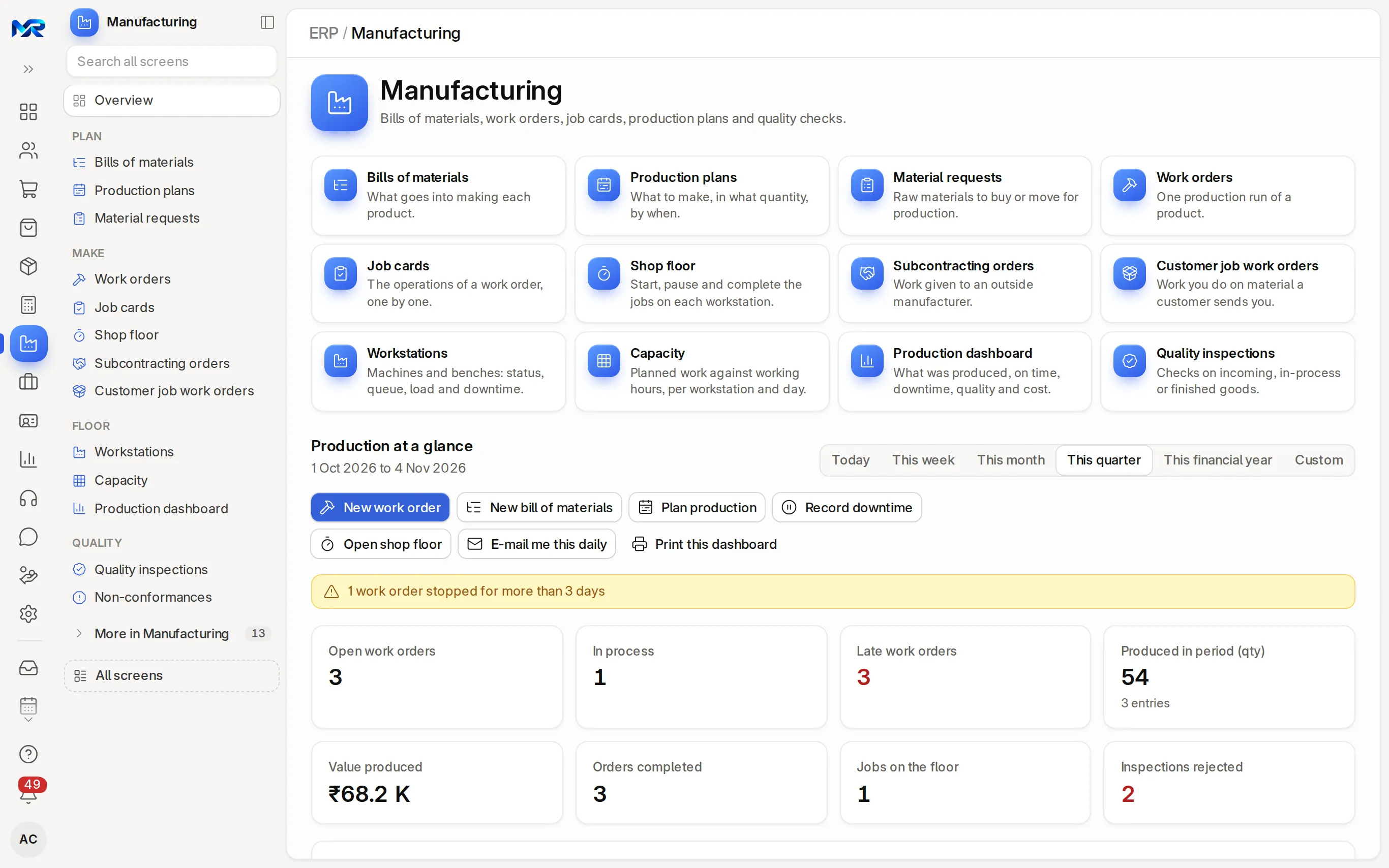
The home answers “what is happening in production now, and what needs me?”.
- Production at a glance: pick the period, from Today to This financial year or Custom. Every figure, chart and list follows it.
- Action buttons: New work order, New bill of materials, Plan production, Record downtime, Open shop floor, E-mail me this daily and Print this dashboard.
- A coloured strip warns about what is stuck, such as work orders stopped for more than three days.
- Key figures: open work orders, in process, late work orders, quantity and value produced, orders completed, jobs on the floor and inspections rejected. A red number needs attention.
- AI brief: Write the brief sums up the figures in a few lines; type a question such as “which orders are late and why?” and press Ask.
- Work lists: Ready to start (materials are there), Short of material, Late, Waiting for quality check and Draft work orders to submit. Short in the next 14 days lists the materials to order, with Raise material request.
- Workstations now: every machine or bench, in production or idle, and the job running on it. Recently produced lists the last finished goods.
The everyday menu
Section titled “The everyday menu”| Group | Entry | What it is for |
|---|---|---|
| Plan | Bills of materials | What goes into making each product |
| Production plans | What to make, in what quantity, by when | |
| Material requests | Raw materials to buy or move for production | |
| Make | Work orders | One production run of a product |
| Job cards | The operations of a work order, one by one | |
| Shop floor | Start, pause and complete the jobs on each workstation | |
| Subcontracting orders | Work given to an outside manufacturer | |
| Customer job work orders | Work you do on material a customer sends you | |
| Floor | Workstations | Machines and benches: status, queue, load and downtime |
| Capacity | Planned work against working hours, per workstation and day | |
| Production dashboard | What was produced, on time, downtime, quality and cost | |
| Quality | Quality inspections | Checks on incoming, in-process or finished goods |
| Non-conformances | Problems with a process, how they were fixed, and the corrective actions |
More in Manufacturing holds the rest: operations, routings, plant floors, downtime entries, BOM explorer, Build a multi-level BOM, Job-work registers and the quality reviews, meetings, feedback, actions, goals and procedures.
Run a production order
Section titled “Run a production order”- Write the recipe. Bills of materials › New (or New bill of materials on the home): the finished product, how many the recipe makes, one row per raw material with its quantity, and the operations if you track time on workstations. Submit it and mark it default. For a product with sub-assemblies, Build a multi-level BOM makes all the bills in one go.
- Make the work order. Press Create work order on the bill of materials, or New work order on the home. Pick the product (its default bill of materials fills in), the quantity, the planned start and the warehouses: materials from, work in progress and finished goods. On save, the required items are filled in from the bill of materials. Submit.
- Move the materials. On the work order, press Start (transfer materials) and confirm the Quantity to make with these materials. The components move to the work-in-progress warehouse and the work order shows In Process. If something is short, Request material asks purchasing for it.
- Do the work. Each operation is a job card (Create job cards on the work order). On Shop floor, pick the workstation and the job (or scan the job card), check the operator and press Start. Pause with a reason when work stops, Resume when it starts again, and Complete with the quantity made.
- Book the finished goods. Press Finish (receive finished goods) and type the Quantity made. The finished goods come in and the raw materials are used up, valued at the bill-of-materials cost plus the operating cost. When the full quantity is made, the work order shows Completed. Return unused components sends back what was left.
How to check it worked
Section titled “How to check it worked”- The work order shows Completed and the quantity made.
- Inventory › Stock balance shows the finished goods in the finished-goods warehouse and less raw material.
- Production dashboard and Recently produced on the home list the run.
Plan production for many orders
Section titled “Plan production for many orders”- Check the orders first: a sales order’s Plan tab says, line by line, whether it can go on time.
- Press Plan production on the home (or Production plans › New) and save. The plan opens on its Plan tab, step by step.
- Pick Sales orders, press Get sales orders and untick the ones to leave out. Get finished goods lists each item with the bill of materials it will use; a line with No BOM stops the plan.
- Get sub-assemblies for parts with their own bill of materials, then Calculate raw materials: what the plan needs against stock and orders. Red lines are short.
- Submit plan, then Create work orders / subcontract orders. When materials are short, Create material requests asks for them.
- Check the load on Capacity (7, 14 or 31 days), and the plan’s Progress tab as work goes on.
The shop floor
Section titled “The shop floor”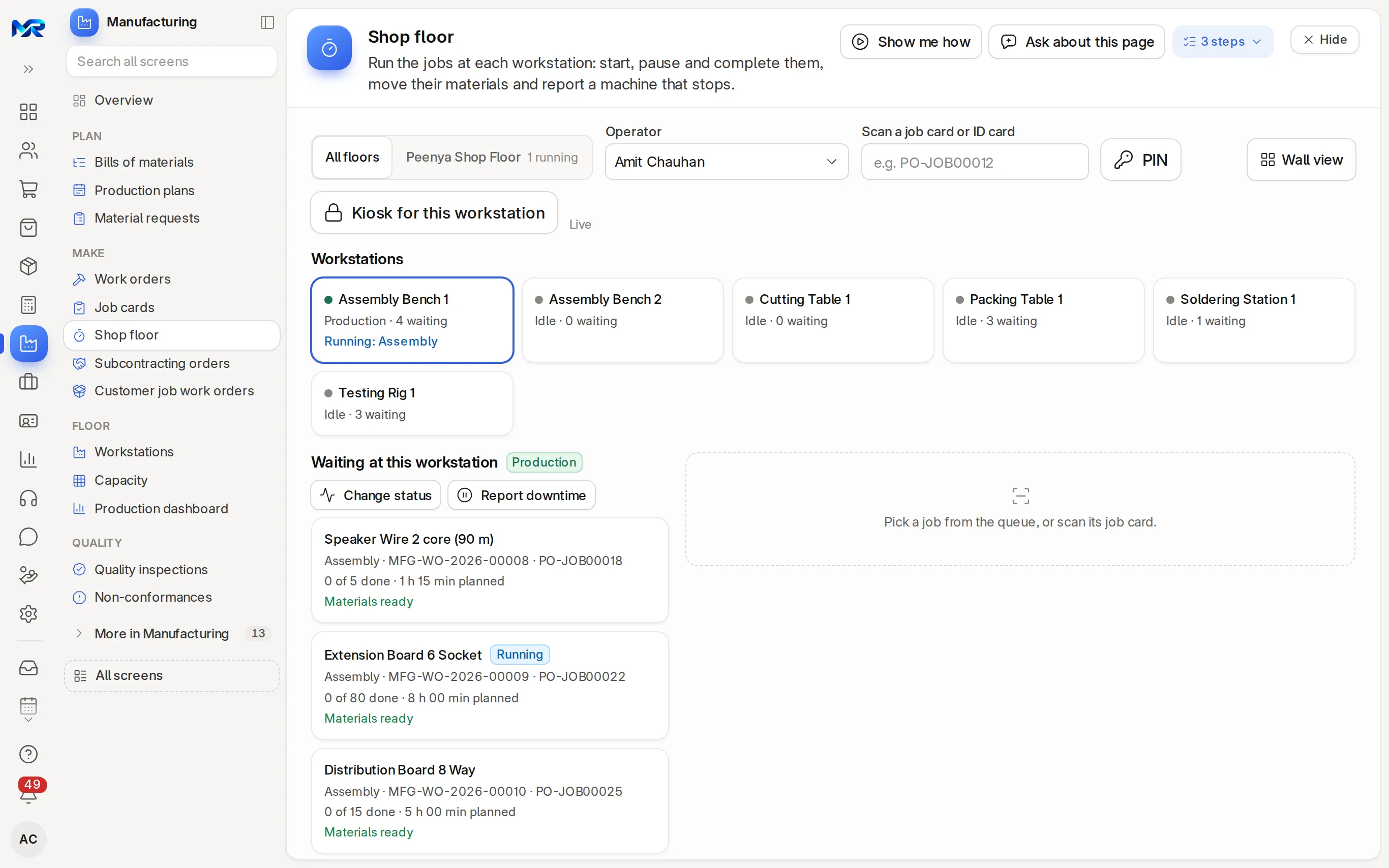
Shop floor runs the jobs at each workstation: start, pause, resume, complete and Report downtime. Kiosk for this workstation locks a tablet to one workstation, where operators sign in with their PIN; Wall view shows every workstation on a big screen. If the network drops, the shop floor keeps working: actions are queued and sent when the connection is back.
Capacity sets planned job time against the hours each workstation can work, day by day; a red day has more work than hours.
Job work and quality
Section titled “Job work and quality”- Subcontracting orders record work given to an outside job worker. Make a purchase order with Is Subcontracted ticked for the service item, then the subcontracting order. Send materials sends the raw materials, Receive goods books the finished goods back and Return components brings back what was not used. Subcontracting needs Manufacturing.
- Customer job work orders handle the reverse: a customer’s own material comes in with Receive material from customer, goes out as goods with Deliver to customer, and never counts as your stock. Job-work registers give the ITC-04 tables.
- Quality inspections check goods against a template of readings: Load template, enter each reading and set Accepted or Rejected. Record non-conformance logs what went wrong. Waiting for quality check on the home lists what is pending; rejected inspections show in red.
AI in Manufacturing
Section titled “AI in Manufacturing”These need the AI Assistant add-on (and an AI key on your own server), and AI switched on for your role:
- A photo, PDF or sheet of a parts list becomes a draft bill of materials, each line matched to your items for you to check.
- A job worker’s or customer’s challan is read and matched to the order’s lines before a draft receipt is made.
- Explain in words explains a bill of materials’ cost; Substitutes for a component finds alternatives with their stock and rate.
- Nothing is created until you confirm it.
Who sees this
Section titled “Who sees this”- Manufacturing User and Manufacturing Manager use Manufacturing. Costs are shown to Manufacturing Managers and accounts users.
- Quality Manager handles inspections.
- Operators use the Shop floor page.
- If Manufacturing is not part of your plan, the whole area is hidden for everyone.
Still stuck?
Ask the team that set it up.
In MyRecords, Show me how walks you through any page. For your plan or a change, write to us.
- Updates and fixes included
- Changes whenever you want