
Purchasing
Purchasing is where you buy: ask for what the team needs, place orders, receive the goods, enter the supplier’s bill and pay it. Buyers own it; accountants open it too, mostly to enter and pay bills.
The Purchasing home
Section titled “The Purchasing home”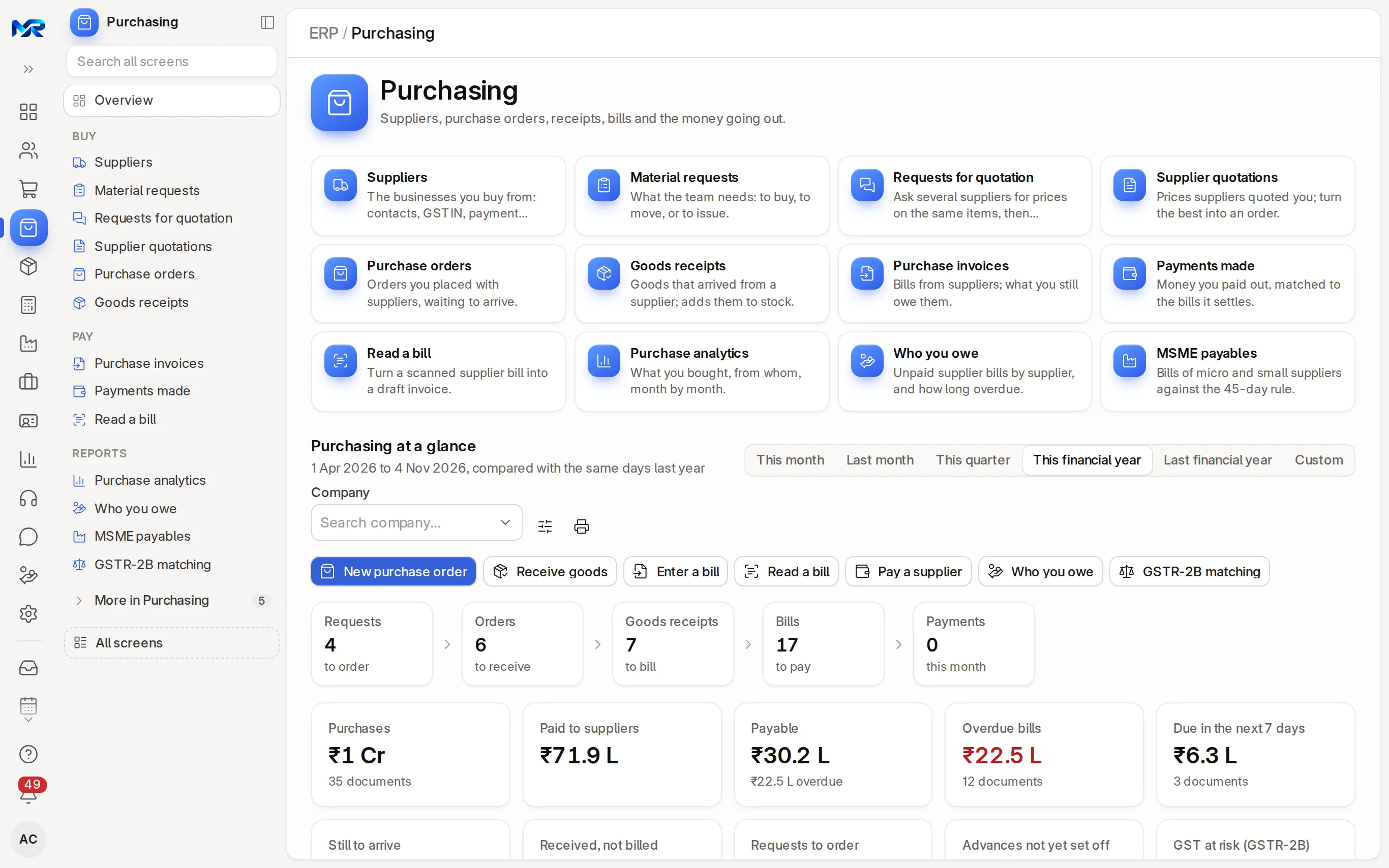
The home answers “what did we buy, what do we owe, and what is waiting for someone?”.
- Purchasing at a glance covers the period you pick: This month, Last month, This quarter, This financial year, Last financial year or Custom, compared with the same days last year. Customise hides or shows parts of the page; Print dashboard prints it.
- Action buttons: New purchase order, Receive goods (the orders still waiting to arrive), Enter a bill, Read a bill, Pay a supplier, Who you owe and GSTR-2B matching.
- Buying flow: requests to order, orders to receive, goods receipts to bill, bills to pay and payments this month; click a step to open those records.
- Key figures: purchases, paid to suppliers, payable, overdue bills, due in the next 7 days, still to arrive, received but not billed, requests to order, advances not yet set off and GST at risk (GSTR-2B).
- To-do lists: Bills to pay this week (with Pay on each), Orders past their expected date, goods received a week ago but not billed, material requests to order, bills on hold and draft bills.
- Look at these: MSME bills unpaid beyond 45 days, bills by month with next month’s forecast, Unusual bills (several times the supplier’s usual amount) and Bought dearer (an item bought at a higher rate than before).
The everyday menu
Section titled “The everyday menu”| Entry | What it is for |
|---|---|
| Suppliers | The businesses you buy from, with GSTIN, address and payment terms |
| Material requests | What your team needs bought or moved (purchase, transfer, issue, manufacture) |
| Requests for quotation | Ask several suppliers for prices on the same items, then compare |
| Supplier quotations | Prices suppliers quoted you; turn the best into an order |
| Purchase orders | Orders placed with suppliers, with a required-by date per line |
| Goods receipts | Goods that arrived from a supplier; stock comes in |
| Purchase invoices | Supplier bills: what you owe |
| Payments made | Money paid to suppliers, with advances not yet set off |
| Read a bill | Turn scans or photos of supplier bills into draft bills |
| Purchase analytics | What you bought from whom, period by period |
| Who you owe | Unpaid supplier bills by supplier and how overdue |
| MSME payables | Bills of micro and small suppliers against the 45-day rule |
| GSTR-2B matching | The GSTR-2B from the GST portal against your purchase bills |
The menu groups them under Buy, Pay and Reports. More in Purchasing holds supplier price rules, supplier scorecards, blanket orders, supplier groups and landed cost vouchers.
Buy, step by step
Section titled “Buy, step by step”- Ask for it. Material requests › New. Set Purpose to Purchase, add the items, quantities and the Required By date, then Save. While it is a draft, its Fulfilment tab can add lines from a sales order or from items below their reorder level. Submit.
- Order it. Open the submitted request and press Create purchase orders: it makes one draft order per supplier, using each item’s default supplier or the one you pick (or press New purchase order on the home). Check the Supplier, the rates and dates, pick the Purchase Taxes and Charges Template, then Save and Submit. Send it with Print or Share.
- Receive the goods. When they arrive, open the order and press Receive goods. For each line, enter the quantity accepted now and any quantity rejected (lines left at 0 stay open on the order). Receive it straight into stock, or save a draft and check the warehouse on the full form first. The stock comes in at the order rate, which becomes its value.
- Enter the bill. When the supplier’s bill comes, press Record bill on the order (or Create › Purchase Invoice on the receipt). Enter the Supplier Invoice No and Supplier Invoice Date from the paper bill, check the tax, then Save and Submit. The bill shows Unpaid with its due date.
- Pay it. Press Pay this bill on the bill (or Pay a supplier on the home, or Pay on a row of Bills to pay this week). A small window asks for the Amount (the balance is filled in; a part payment is fine), Paid by (the mode, which sets the bank or cash account), the Date and the Reference (UTR, cheque no.). Confirm. The bill turns Paid, or Partly Paid with the rest outstanding.
You can also bill straight from a purchase order without a receipt (services, or goods you do not stock), and turn a supplier quotation into a purchase order with Create.
How to check it worked
Section titled “How to check it worked”- The order’s Receipts & bills tab shows how much has arrived and been billed. A late order shows a red line there, with Chase on WhatsApp.
- Who you owe shows the supplier’s balance falling as you pay.
GST on purchases
Section titled “GST on purchases”The GST type follows the supplier’s state: a supplier in your own state gives CGST + SGST; another state, an SEZ or overseas gives IGST. The state comes from the supplier’s GSTIN, else the supplier’s address. On a draft, a template of the wrong kind switches by itself to the matching one, with a short notice (“IGST applied: the supplier is in another state…”). A wrong-type template you pick on purpose is refused when you save. If the state is not known, nothing is changed.
GSTR-2B matching compares your purchase bills with the GSTR-2B file you download from the GST portal and upload here; see Accounting.
Read a bill from a photo
Section titled “Read a bill from a photo”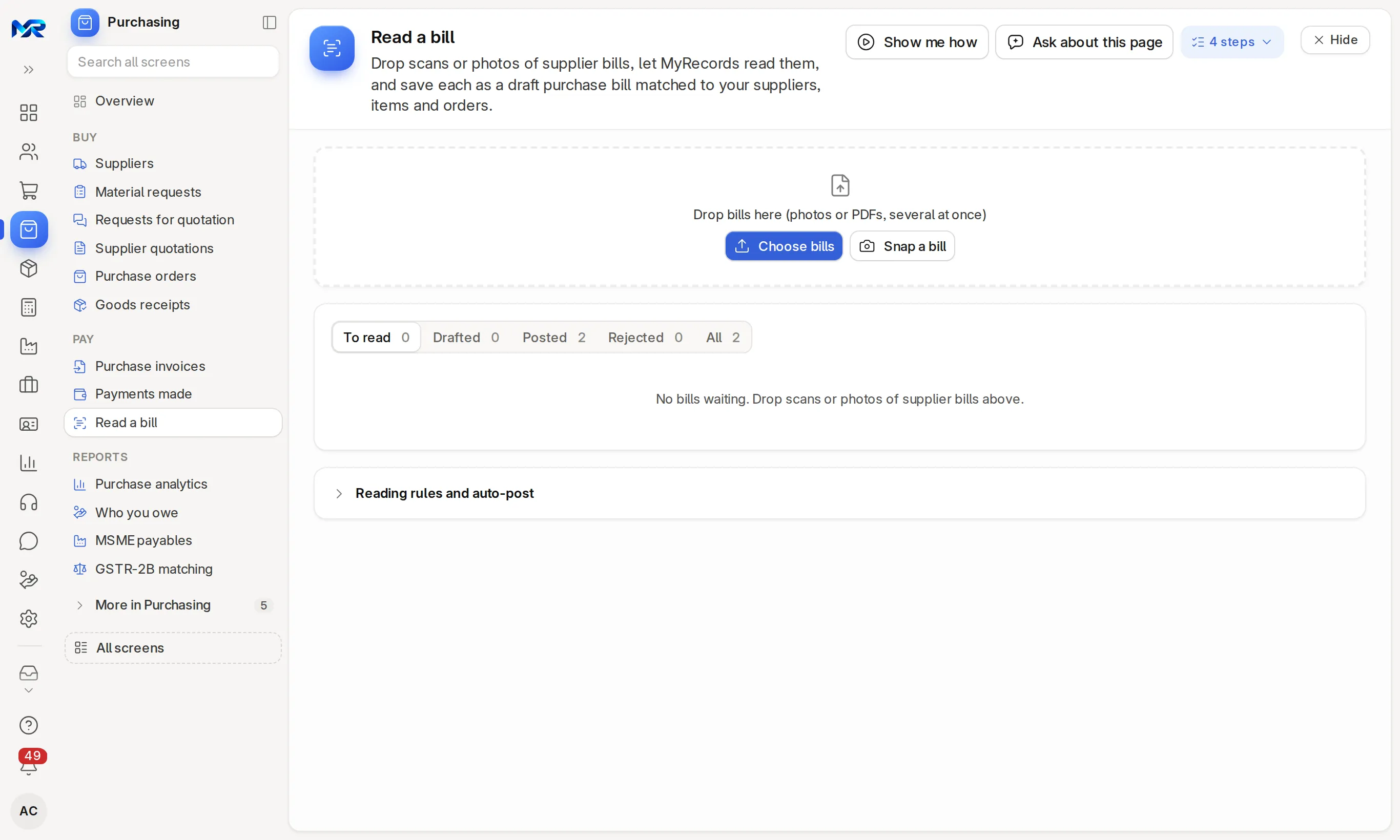
- Open Read a bill, or press Read a bill on the home.
- Drop scans or PDFs on the page, or press Choose bills (several at once). On a phone, Snap a bill takes the photo; with no network, the photo waits on the phone and goes up when it is back.
- The bills wait under To read. Press Review on one, then Read this bill: the supplier, bill number, dates, lines and GST are read and matched to your suppliers, items and open orders. Check them, and the totals check.
- Press Save draft (or Create from this order when it is for an open order). The scan is attached to the draft bill. Nothing is booked until you submit it, unless an Accounts Manager has switched on automatic posting for bills read with high confidence whose totals agree.
Tick several scans to read them together; each shows whether it is ready, needs a check or failed. Bills mailed to a chosen mailbox, or sent on WhatsApp once WhatsApp is connected, land in the same list. Read a bill needs the AI Assistant add-on (and an AI key on your own server).
Who you owe and MSME suppliers
Section titled “Who you owe and MSME suppliers”- Who you owe lists unpaid bills by supplier and by bill, how late they are and any advance you already paid, with Pay on each supplier.
- MSME payables tracks bills of micro and small suppliers against the 45-day rule, the interest they attract and what is not deductible this year (s.43B(h)), so you can pay them in time; it also prepares the MSME-1 return. Mark a supplier Micro, Small or Medium on its record.
- Write, say or snap what you need, on a draft material request’s Fulfilment tab, turns “40 bags cement and 2 tonnes 12mm TMT by Monday”, or a photo of a paper indent, into lines you tick (needs the AI Assistant add-on).
Who sees this
Section titled “Who sees this”- Purchase User and Purchase Manager own Purchasing: suppliers, requests, orders and receipts.
- Accountants (Accounts User and Accounts Manager) see purchase invoices and payments made, here and under Accounting.
- Storekeepers with the Stock User role receive goods.
Still stuck?
Ask the team that set it up.
In MyRecords, Show me how walks you through any page. For your plan or a change, write to us.
- Updates and fixes included
- Changes whenever you want