
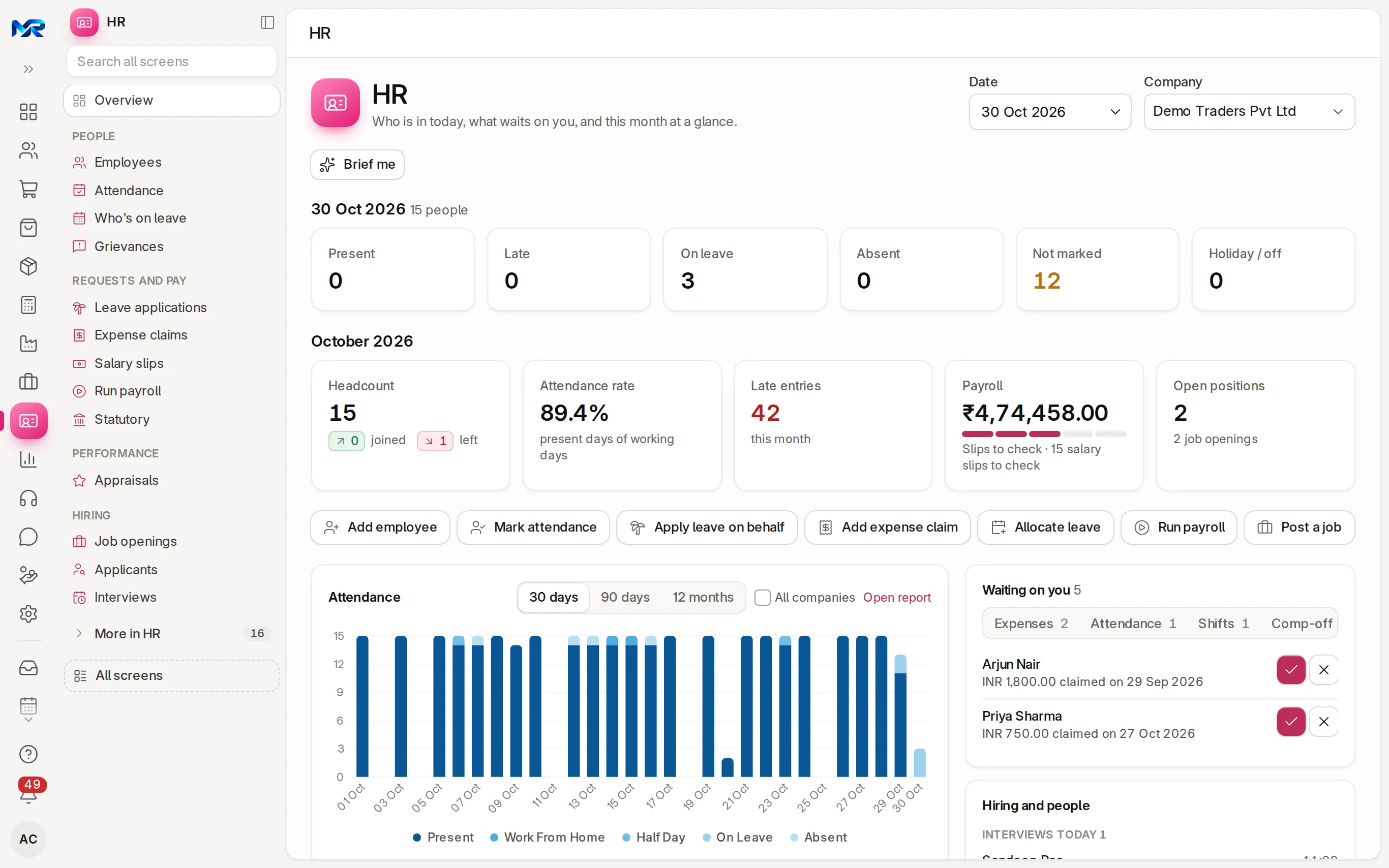
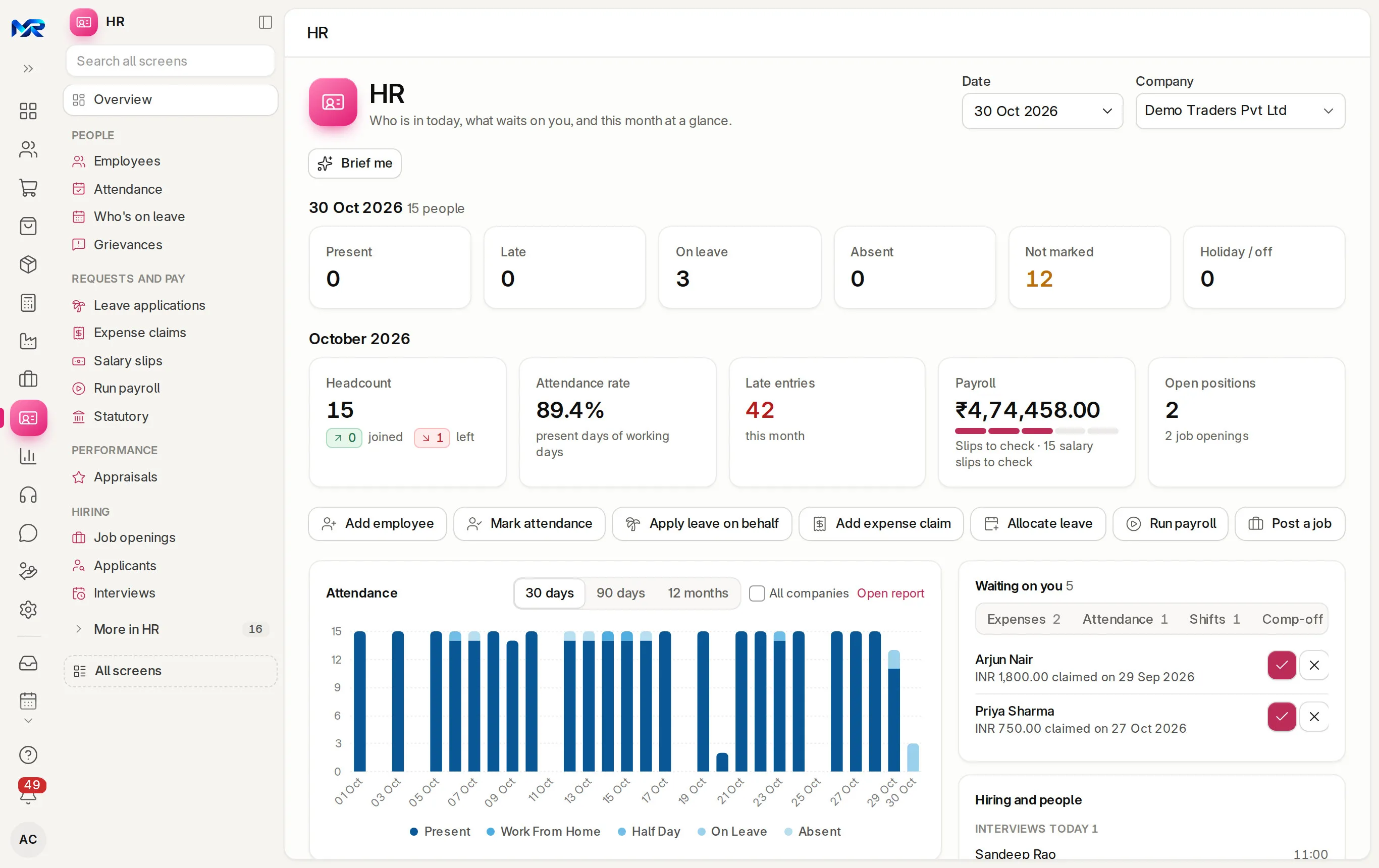
HR
Claims with the bill, approvals in one place.
Employees claim with a photo of the bill, managers approve from one inbox, accounts pays many at once.
9 of 10 parts work today
- Users
- Unlimited
- no per-user fee on any module
- Runs on
- Your server
- or a dedicated system on MyRecords Cloud
- Core ready in
- 1–2 weeks
- set up by our team with the modules you pick
How it works
Four steps, start to finish.
In short
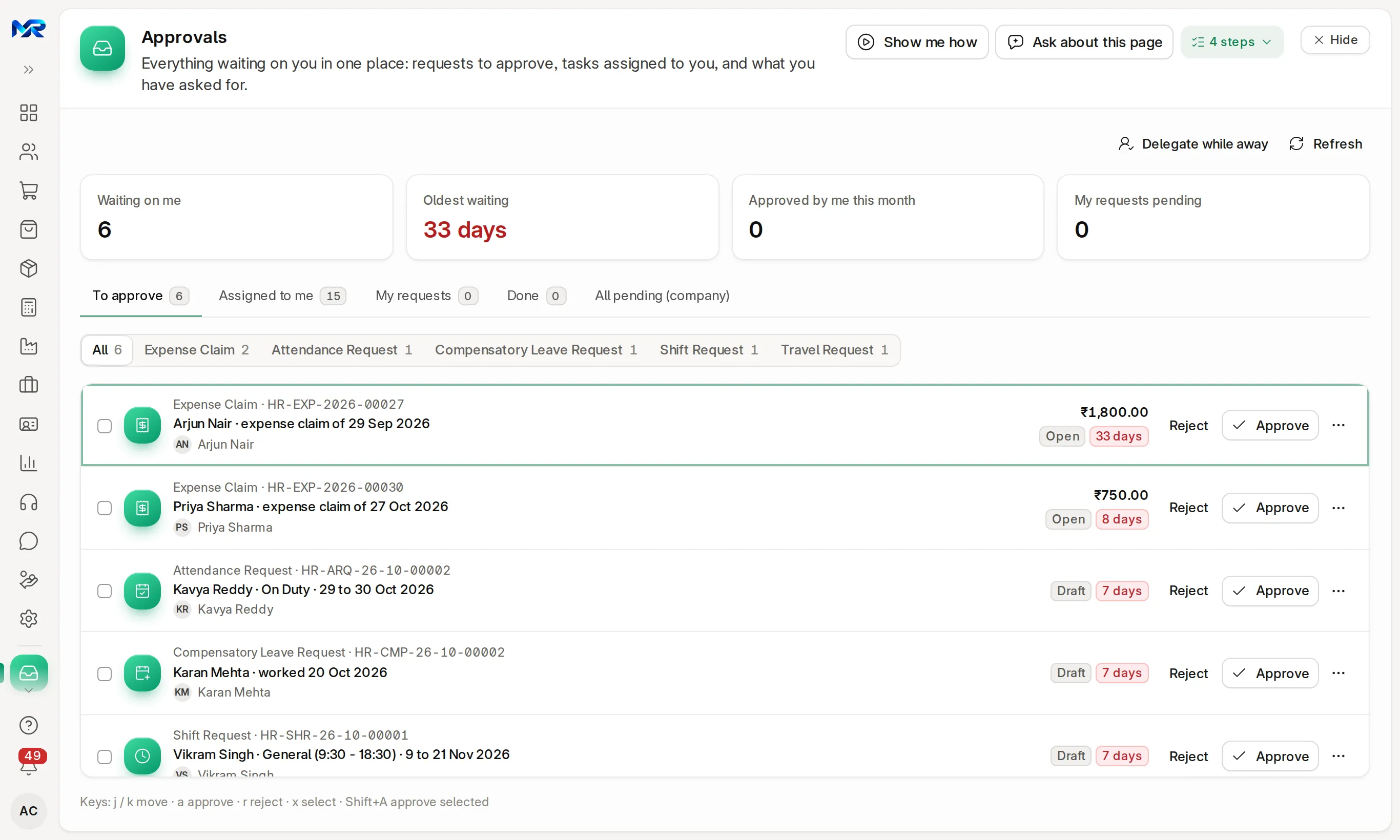
Expense claims in MyRecords carry the bill photo on each line, the approver from the employee's record, and the payment once it is made. Managers decide leave, expense, attendance, shift, comp-off, advance, travel and leave encashment requests from one Approvals inbox, one by one or in bulk. Approved claims are paid together from one page, and each payment posts to the books.
-
Step 1
Claim
In My HR — expense type, date, amount and a photo of the bill. Several expenses can go in one claim.
-
Step 2
Approve
The approver sees each line, its receipt, possible duplicates and open advances, and can sanction less than claimed.
-
Step 3
Pay
Your accounts team picks the approved claims on Pay expense claims and pays them in one go, or pays one by UPI QR. Each payment posts to the books.
-
Step 4
Settle advances
An advance is adjusted against claims, returned, or deducted.
The details
What it covers.
9 of 10 work today
- Works today 9
- Once connected 1
-
One approvals inboxWorks today
Everything waiting on you by kind, and how long the oldest has waited. Approve, reject with a reason, or tick many and decide together.
-
Delegate while awayWorks today
Name someone to approve in your place while you are on leave.
-
On the phoneWorks today
The inbox works in any phone browser. On the HR home, swipe right to approve and left to reject.
-
Sanction per lineWorks today
Approve a different amount for each line; the employee sees what was sanctioned.
-
Same bill twiceWorks today
The same bill on two claims is flagged to the approver.
-
Expense policyWorks today
Limits and flags per expense type, and a stop at approval when a claim breaks the policy.
-
Say it or read the billWorks today
Type or say "Taxi 450 yesterday" and Read fills the line. With the AI Assistant add-on, Read with AI reads a line the rules miss, and Read this bill takes the date, amount and shop from a bill photo for you to check.
-
Spending this monthWorks today
Claimed, approved and unpaid by expense type, person and department against the month before. GST and the supplier's GSTIN per bill line, ITC from bills as Excel for your accountant, and the approved claims as Tally journal vouchers. Explain with AI adds a short summary.
-
Approve from ChatWorks today
A leave or expense request shared in Chat shows Approve and Reject to its approver.
-
Claims by WhatsAppOnce connected
A bill photo sent on WhatsApp becomes a draft claim line, and approvers can reply APPROVE or REJECT. Off by default; works once your WhatsApp Business account is connected.
Questions
Questions people ask
Something else on your mind?
Ask us anything about it. A person from our team replies.
Ask a question01Can an employee claim without a bill?
Each line has a place for the bill or a photo of it. The approver's review shows, line by line, which have a receipt and which do not, and can sanction accordingly.
02Who approves a claim?
The expense approver set on the employee's record. When HR raises a claim for someone, the approver is filled from that record.
03Can we pay many claims at once?
Yes. "Pay expense claims" pays many approved claims in one go from your bank account, and each payment posts to the books.
04Can a manager approve while travelling?
Yes, from the inbox in any phone browser, from the request's card in Chat, or by naming someone to approve while they are away.
Last updated Applies to MyRecords 3 Nov 2026 release
Next step
See it on your own numbers.
A live demo on our sample company, with our team. Or ask us for a quote first.
Live demo
Book a walk-through
- On our sample company, for your kind of work
- A quote for the modules you need
- Your questions, answered by our team